OpenCode: The Model-Agnostic AI Coding CLI I’ve Relied On for a Year

I have been using AI coding assistants for a while now. They all do roughly the same thing: help you write and understand code faster. But the one I keep coming back to is OpenCode. It fits like a glove.

Built for the terminal

OpenCode follows what good CLI tools do: lightweight, minimal interface, but gives you exactly what you need to see what is going on. The output is colour-coded, well laid out, and easy to read at a glance. When it explains what it is doing, I can see the plan clearly before it executes. When it writes code, I can review the diff before applying it.
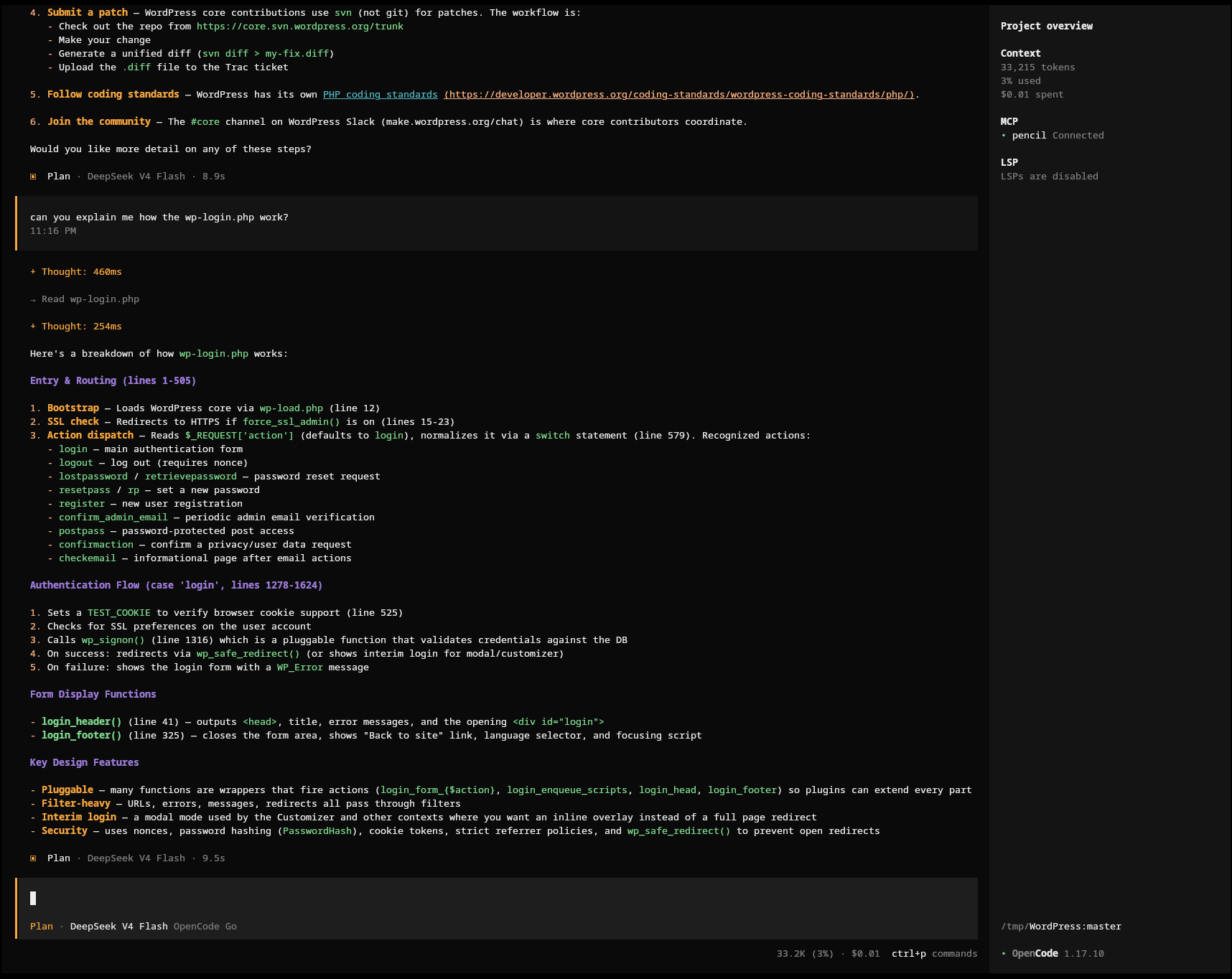
OpenCode CLI interface showing structured AI response about WordPress wp-login.php

Desktop-based applications often either focus on the wrong things, or there is too much going on to keep the important functionalities in mind. OpenCode feels like a tool designed for people who live in the terminal.

Open.. everything

The OpenCode CLI is open source but also open, full stop. It does not try to lock you into anything. It tries to support as many different platforms, subscriptions etc. I want the flexibility to switch AI provider when there is a deal, a new model or to walk away from something I no longer like. Open source also means the community can contribute, audit, and improve it.

The OpenCode Go subscription

This is not needed to use OpenCode if you already have a subscription. If you don’t and/or you’ve been sitting on the fence for quite some time, maybe waiting for the perfect entry point into AI, I suggest you give it a try.

OpenCode Go costs then $10 per month ($5 for the first month). For this $10 you get $60 worth of usage. This is because usage is measured in dollar value rather than raw request counts.

The limits run in rolling windows to avoid overloading the platform. You get a 5-hour rolling limit of $12, a weekly limit of $30, and a monthly limit of $60. The actual number of requests you can make depends on which model you use — cheaper models get you many more requests, advanced ones fewer.

For example, with DeepSeek V4 Flash I get over 30,000 requests per 5-hour window. That is plenty for daily use. More advanced models like GLM cost more per request, so the same window buys fewer of them — I save those for when I need stronger reasoning.

If I need more usage, I can top up credit or let it fall back to my Zen balance. And once I hit the paid limits, the free models included with OpenCode still work.

There is also OpenCode Zen if you want the flexibility of a wider range of models and providers. But for most of what I do, Go covers it.

Models I actually use

I have settled on a few that cover most of my needs:

DeepSeek V4 Flash — my everyday driver. Fast, great value on credits, good for probably 80% of my interactions.

MiMo V2.5 — when I need vision capabilities. Looking at screenshots, debugging UI issues. Similar value to DeepSeek Flash.

GLM 5.x — for infrastructure work and complex multi-step reasoning. Excellent at planning, but I use it selectively because it consumes credits faster.

The ability to pick the right model for the task rather than being locked into one is exactly what I want. Some providers try to keep you inside their ecosystem. OpenCode lets you choose.

Actively maintained

The tool is actively developed. New models are added regularly, the CLI keeps improving, and the community around it is engaged.

Give it a try

If you live in the terminal and want an AI coding assistant that respects that, OpenCode is worth a try. It has become an indispensable part of my daily workflow.

If you want to give it a shot, you can sign up at opencode.ai (full disclosure: that is my referral link, which will give BOTH OF US $5 of extra credits).

Andrea
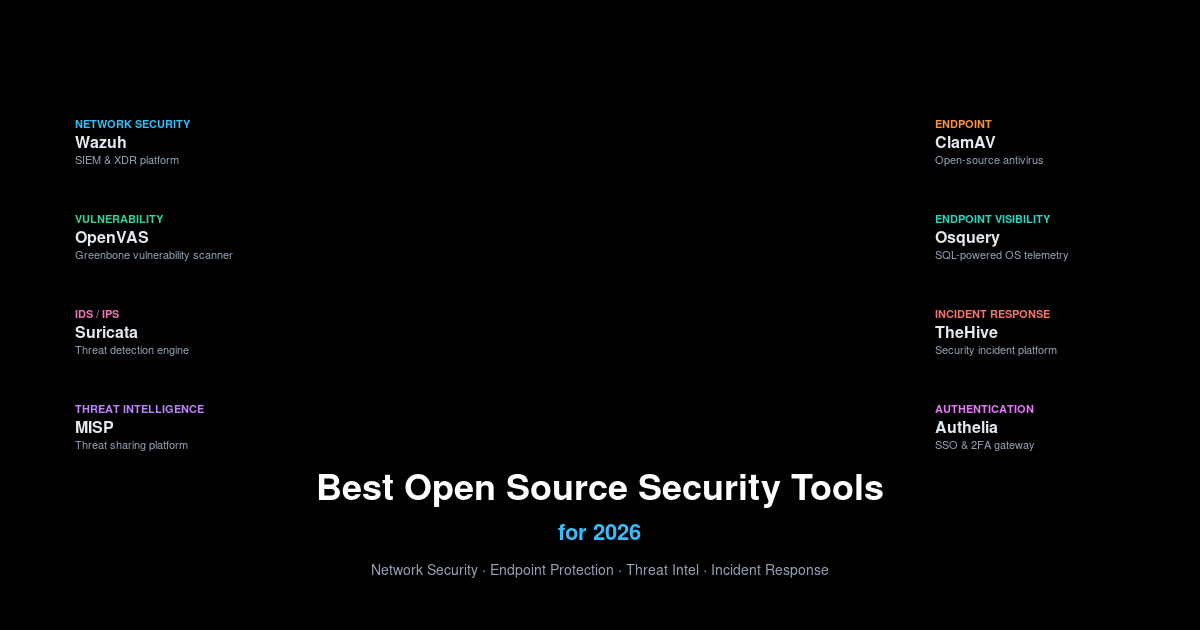
Best Open Source Security Tools for 2026

A roundup of the best open-source security tools worth running in 2026 — from SIEM and vulnerability scanning to endpoint visibility and incident response.

If you’re running any kind of infrastructure in 2026 — whether it’s a homelab, a small business setup, or a production environment — security isn’t optional. But you don’t need to spend a fortune on commercial licences to protect yourself. Some of the best security tools out there are open source, community-backed, and genuinely enterprise-grade.

I’ve been keeping an eye on the security tooling landscape this year, and a few names keep coming up across the board — from TuxCare’s roundup to community discussions on r/selfhosted and various tech publications. Here are the ones that stand out.

Wazuh — SIEM and XDR, Free

If you only install one security tool this year, make it Wazuh. It’s a unified SIEM (Security Information and Event Management) and XDR (Extended Detection and Response) platform that does log analysis, file integrity monitoring, vulnerability detection, and compliance auditing — all in one package.

It scales from a single Raspberry Pi to a full enterprise deployment. The agents run on Linux, Windows, macOS, and even Solaris. And unlike its commercial counterparts, there’s no per-agent licensing. You install the manager, deploy agents, and you get a central dashboard with real-time alerts.

I use it to monitor my own infrastructure and it catches things I’d never spot otherwise. The compliance reporting (GDPR, PCI DSS, HIPAA) is a nice bonus if you need it.

OpenVAS / Greenbone — Vulnerability Scanning

OpenVAS, now part of the Greenbone Vulnerability Management suite, is the go-to for open-source vulnerability scanning. It maintains a feed of over 100,000 network vulnerability tests (NVTs) and runs scheduled or on-demand scans against your network.

The web interface (Greenbone Security Assistant) gives you a clear view of your attack surface, sorted by severity. Pull it up once a week, patch the criticals, and sleep better at night.

It pairs nicely with Wazuh — Wazuh handles the real-time monitoring, OpenVAS handles the regular deep scans.

Suricata — IDS/IPS That Keeps Up

Suricata is a high-performance network IDS, IPS, and network security monitoring engine. It’s the modern alternative to Snort — it can handle multi-threading natively, supports GPU acceleration, and processes traffic at 10Gbps+ on decent hardware.

It uses the same rule sets as Snort (Emerging Threats, VRT) so you don’t lose anything in the switch. I switched from Snort to Suricata a couple of years ago and the performance difference was immediate. On the same hardware, Suricata handled three times the throughput without dropping packets.

ClamAV — Still the Antivirus Standard

Yes, antivirus on Linux is a debated topic. But if you’re running a mail server, a file-sharing service, or any system where users upload files, you need ClamAV. It catches Windows malware at the gateway before it ever reaches your Windows users.

It’s maintained by Cisco Talos, which means the signature updates are regular and reliable. Combined with FreshClam for automatic updates, it’s a set-and-forget security layer for your infrastructure.

Osquery — SQL for Your OS

Osquery lets you query your operating system like a database. Want to see every running process, every network connection, every USB device that’s ever been plugged in? Write a SQL query.

It’s not a SIEM replacement — it’s a telemetry layer that feeds into your monitoring stack. Pair it with Fleet or Kolide for multi-server management, and you’ve got real-time visibility into every endpoint without installing heavyweight agents.

Facebook built it, and it’s now a Linux Foundation project. The community is active, the schema is well-documented, and it works on Linux, macOS, Windows, and containers.

MISP — Threat Intelligence Sharing

MISP (Malware Information Sharing Platform) is the standard for threat intelligence sharing. If you’re part of a security team, or even just a well-organised homelabber who wants to keep up with IoCs (Indicators of Compromise), MISP gives you a structured way to store, share, and correlate threat data.

It integrates with Wazuh, Suricata, and pretty much everything else. The community feeds (CIRCL, VirusTotal, AlienVault OTX) keep the data flowing in automatically. You don’t need a full SOC to benefit from it.

TheHive — Incident Response for the Rest of Us

TheHive is an incident response platform designed for SOCs, but it works just as well for a solo admin. It lets you track cases, link them to alerts from Wazuh or MISP, and collaborate on investigations.

It uses a case management model that’s intuitive even if you’ve never worked in a SOC. Alert comes in, you create a case, assign tasks, attach observables, and run analysis. It keeps everything organised when things go wrong — and when things are calm, it gives you a nice dashboard showing that nothing’s on fire.

Nmap — The Old Reliable

Nmap is older than most security tools on this list, and it’s still indispensable. Network discovery, port scanning, OS fingerprinting, service detection — it’s the swiss army knife of network security.

Most of the other tools here integrate with Nmap’s output somehow. Zenmap gives it a GUI, but honestly, the command line is where it shines. I use it daily for quick checks, and every couple of months I run a full scan of my network to see what’s changed.

Which One Should You Pick?

If you’re starting from scratch: Wazuh gives you the most bang for your effort. Add OpenVAS for scheduled vulnerability scans, Suricata at your network perimeter, and ClamAV on anything that handles file uploads. That’s a solid stack that covers detection, scanning, and prevention without spending a penny on licences.

If you’re on a budget (and let’s be honest, who isn’t?), the combination of Wazuh + Suricata + MISP + TheHive gives you a complete security operations stack that competes with commercial offerings costing tens of thousands a year.

What do you think? Running any of these — or something I’ve missed? I’d love to hear about your setup.

Related Articles

Andrea

Jellyfin vs Plex vs Emby — free vs paid media server

If you’ve got a collection of movies, TV shows, or music sitting on a hard drive, you’ve probably thought about setting up a media server. The big three names that come up are Jellyfin, Plex, and Emby. They all do roughly the same thing — organise your media and stream it to your devices — but they go about it in very different ways.

I’ve used all three over the years, and here’s my honest take on where each one shines and where they fall short.

The Quick Overview

  • Jellyfin — Fully free and open source. No subscriptions, no paid tiers, no accounts required. Forked from Emby in 2018 when Emby went proprietary.
  • Plex — The most polished and user-friendly option. Free for local streaming, but remote access and advanced features need a Plex Pass subscription (from £4.99/month or a lifetime pass).
  • Emby — The middle ground. Open-source core with a commercial Premiere tier for hardware transcoding, DVR, and mobile apps. Premiere starts at $4.99/month or a lifetime licence.

Jellyfin — The Free Open-Source Option

Jellyfin is the media server you run when you want everything open source. It started as a fork of Emby back in 2018, when the Emby team decided to close-source parts of their project, and it’s been thriving ever since.

There’s no company behind Jellyfin — it’s built entirely by volunteers. That means no one trying to upsell you, no data collection, no account required. You download the server, run it, and point your browser at it. That’s it.

What Jellyfin does well

  • Absolutely no cost — Every feature is free. Hardware transcoding, remote access, downloads, all of it.
  • Privacy focused — No telemetry, no analytics, no account needed.
  • Live TV and DVR — Works with any standard TV tuner (HDHomeRun, M3U, etc.).
  • SyncPlay — Watch content together with friends and family remotely, synchronised playback.
  • Cross-platform clients — Web, Android, iOS, Roku, Kodi, and more.

Where Jellyfin falls short

  • Polish — The UI is functional but doesn’t feel as slick as Plex out of the box. You can theme it, but it takes effort.
  • Metadata — It pulls metadata well, but not quite as reliably as Plex. You may need to fix the odd match.
  • Setup — You need to be comfortable with a bit of configuration. It’s not difficult, but Plex is more beginner-friendly.

Plex — The Polished Commercial Choice

Plex is what most people think of when they hear “media server”. It’s the most polished, the easiest to set up, and the one your non-technical friends can use without hand-holding.

Plex Inc. runs it as a business, which means the free tier is limited. Local streaming is free. Remote streaming, hardware transcoding, downloads, and features like Skip Intro all require a subscription. There are two paid tiers: Remote Watch Pass (£2.99/month) for basic remote access, and Plex Pass (£4.99/month or lifetime) for everything.

What Plex does well

  • Ease of setup — Install, point at your media folders, and it mostly just works. The metadata matching is stellar.
  • Client apps — Plex has apps on everything. Smart TVs, game consoles, streaming sticks, phones — if it has a screen, there’s probably a Plex app.
  • Plexamp — A genuinely excellent music player for your personal music collection. Worth mentioning on its own.
  • Free ad-supported content — Plex bundles free movies and live TV channels (ad-supported), which is nice for casual browsing.
  • User management — Granular control over who accesses what, with managed accounts for kids.

Where Plex falls short

  • Cost — Hardware transcoding and remote streaming are locked behind subscriptions. The lifetime pass is a one-time cost, but it’s not cheap.
  • Account required — You need a Plex account to use it. Plex’s servers handle authentication and discovery, even for local streaming.
  • Data collection — Plex collects usage data. They’ve improved their privacy policy, but it’s not a zero-telemetry system.
  • Proprietary — The core is closed source. You’re dependent on Plex Inc.’s direction for features and fixes.

Emby — The In-Between Option

Emby started as a fully open-source project called Media Browser, then rebranded and gradually moved toward a commercial model. It sits somewhere between Jellyfin and Plex — more open than Plex, but with a paid tier for premium features.

The core server is open source, but features like hardware transcoding, DVR, mobile app access, and cover art plugins require an Emby Premiere subscription ($4.99/month, or a lifetime licence).

What Emby does well

  • Good balance — You get a lot for free (local streaming, web interface, basic apps), and Premiere unlocks genuinely useful features.
  • Hardware transcoding — Premiere includes excellent GPU-accelerated transcoding, using your Intel QuickSync, NVIDIA NVENC, or AMD hardware.
  • Emby Theater — A dedicated TV client that works well on Windows, Xbox, and PlayStation.
  • Live TV and DVR — Robust with guide data, series recording, and commercial skipping.
  • Plugin system — Good selection of community plugins for extra functionality.

Where Emby falls short

  • Split community — The 2018 fork that created Jellyfin split the user base and developer attention.
  • Mobile apps locked — Without Premiere, the Android and iOS apps can only play for a limited time before asking you to buy.
  • Smaller ecosystem — Fewer clients and third-party integrations than Plex, and less community momentum than Jellyfin.
  • Licensing confusion — The line between what’s free and what’s Premiere isn’t always clear on their website.

The Bottom Line

If you want free, open source, and full control — go with Jellyfin. It does everything the others do, and you don’t have to worry about subscriptions or data collection. It’s what I run personally.

If you want the most polished experience and you’re happy to pay for it — go with Plex. The setup is effortless, the apps are everywhere, and the lifetime pass is good value if you plan to use it for years.

If you want a middle ground with a strong open-source core and don’t mind paying for premium features — Emby is worth a look. Its hardware transcoding is excellent, and the Theater app is the best TV experience of the three.

Further Reading

Check out the Jellyfin directory listing on The Web Is Free for more details.

Download it at jellyfin.org — free, no subscriptions, no account required.

Related Articles

Hope this helps you decide!
Andrea

GIMP vs Krita — which image editor is right for you?

So you need a free image editor — you’ve heard of GIMP and Krita, both free and open source, both powerful, but you’re not sure which one to install. I’ve used both extensively and the answer really depends on what you want to do. Let me break it down.

What Each Tool Is Actually Made For

This is the key difference most people miss. GIMP and Krita are both image editors, but they were built for completely different jobs.

GIMP (GNU Image Manipulation Program) is a Photoshop replacement — it’s built for photo retouching, image composition, and graphic design. You open a photo, tweak the colours, remove a background, resize it, add some text, export. It handles raster graphics, layers, masks, and all the standard image manipulation tasks you’d expect.

Krita is a digital painting studio. It’s built from the ground up for illustrators, concept artists, and comic creators. The brush engine is its superpower — it mimics real media (oils, watercolours, pastels) better than anything else in the open source world. Yes, it can also edit photos, but that’s not its strength.

GIMP’s Strengths

  • Photo editing — colour correction, levels, curves, healing tool, clone stamp. It’s excellent for touching up real photographs.
  • Batch processing — you can automate repetitive tasks with scripts (Script-Fu, Python-Fu). Great for processing hundreds of images.
  • File format support — GIMP opens almost anything: PSD, PNG, JPEG, TIFF, BMP, and dozens of obscure formats. The RAW import via UFRaw is solid.
  • Plugins ecosystem — there are hundreds of community plugins for everything from noise reduction to web optimisation.
  • Lightweight — it runs on old hardware without complaining. I’ve used GIMP on a 10-year-old laptop with no issues.

Krita’s Strengths

  • Brush engine — it’s genuinely remarkable. The brush tips, textures, colour smudging, and blending feel natural. If you’re doing digital art, you’ll notice the difference immediately.
  • Stabilisation — built-in stroke smoothing that makes your lines look clean and confident. A lifesaver for anyone using a drawing tablet.
  • Animation tools — Krita has a full frame-by-frame animation system. You can create flipbook-style animations right inside the interface.
  • Wrap-around mode — perfect for creating seamless textures and tileable patterns. You paint across the edge and it wraps around.
  • HDR painting — support for high dynamic range images and 16-bit/32-bit colour channels, essential for professional illustration work.

Which Should You Choose?

Here’s the short version:

Choose GIMP if: you’re editing photos, designing graphics for the web, making social media images, resizing and converting batches of files, or doing any kind of image manipulation where the goal is to modify an existing image rather than create something from scratch.

Choose Krita if: you’re drawing, painting, making comics, doing concept art, creating animations, or working on any project where you start with a blank canvas and build an image from nothing.

If you really want both, that’s fine too — they coexist perfectly on the same system and there’s no conflict between them. I have both installed and use GIMP for quick photo edits and Krita when I’m sketching out ideas.

The Bottom Line

Don’t overthink this one. GIMP and Krita serve different purposes and both are excellent at what they do. The “versus” in the title is a bit misleading — they’re not really competitors. If you need a photo editor, get GIMP. If you need a painting tool, get Krita. If you need both, get both. They’re free, after all.

Looking for other open source creative tools? Check out our directory listings for GIMP and Krita, or browse the full Creative & Multimedia category for more free alternatives.

Give them both a try!

Related Articles

Debian at 30: The Quiet Operating System That Keeps the Internet Running

Debian 13 Trixie banner

I have been using Debian for more than fifteen years now. Not exclusively — I have used Ubuntu, CentOS, Fedora, even some BSDs here and there — but Debian is the one I keep coming back to. It is the operating system I trust with my servers, my home lab, and increasingly my daily driver too.

Debian turned 30 recently. Thirty years. That is older than many of the developers using it. And in internet years, that makes it practically ancient. But unlike most things that age, Debian has not faded or collapsed under its own weight. It has just kept going, quietly, reliably, release after release.

I think that is worth talking about.

Stability is not boring

Let me address the elephant in the room. Debian Stable is not exciting. You will not get the latest kernel the day Linus Torvalds announces it. You will not get the newest GNOME release on release day. You will not find snap packages forced down your throat, or telemetry phoning home, or a marketing team trying to convince you that this version is the most exciting ever.

What you get is a system that works. Today, tomorrow, and next year. The testing gates are rigorous. Packages do not land in stable until they have been through unstable, then testing, and then a freeze period that can last months. Things that break get caught before they reach you, not after.

I have had Debian servers running for years with only security patches and the occasional point release. No surprises. No “oh, that update broke nginx again.” No forced reboots because the package manager decided you needed the latest everything right now.

That is not boring. That is professional.

Five years of security support. For free.

Think about what that means. You install Debian Stable today, and you will receive security updates until 2031. Not from a company that might change its mind or get acquired or decide that free users need to upgrade to a paid tier. From a volunteer team that has been doing this consistently for decades.

After the initial three years, the LTS team takes over for another two. And if you need even longer, Freexian offers commercial ELTS that can stretch that to ten years total. Ten years of security support from a single install. Name another general-purpose operating system that offers that without demanding a subscription.

And when you do eventually need to upgrade, Debian makes it straightforward. I upgraded a server from 11 to 12 last year and it took about an hour. Same hardware, same config, same applications — just a newer kernel and libraries underneath. Many distributions require a full reinstall for major version jumps. Debian does not.

What you get out of the box (and what you do not)

A minimal Debian server install uses surprisingly little RAM. I have run web servers on 512MB VPS without breaking a sweat. There is no desktop environment, no snap daemon, no cloud-init scripts phoning home — just a clean, working system and apt to install whatever you actually need.

And apt itself is worth mentioning. After using package managers on other systems, I always appreciate coming back to apt. It handles dependencies properly, upgrades are predictable, and if something goes wrong it tells you exactly what happened and often how to fix it.

The official repository has around sixty thousand packages. Most of what you will ever need is one apt install away. And if you need something newer than what stable provides, backports has you covered — newer versions of selected packages built for the stable release.

The quiet giant behind everything

Here is something I find remarkable. Debian does not get much media attention. It is not the shiniest or the trendiest. But look around and you will see it everywhere.

Ubuntu is based on Debian. So are Linux Mint, Kali Linux, Proxmox, and many others. Docker’s official images are largely Debian-based. A significant chunk of the internet’s infrastructure runs on Debian or something derived from it. The work the Debian Security Team does benefits not just Debian users but the entire ecosystem.

I like that. An operating system that does its job so well that people build things on top of it and forget it is there. That is a legacy worth celebrating.

A community, not a product

Debian is run by a community of volunteers through a democratic governance model. There is no company that can change direction, lay off the team, or decide to monetise something that used to be free. The Debian Social Contract and the DFSG define what the project stands for, and those do not change based on quarterly results.

In an era where every other operating system seems to be adding telemetry, forcing accounts, or pushing subscriptions, an independently governed, genuinely free distribution is more valuable than ever. That is not nostalgia. That is a practical advantage.

Not perfect, but honest

I am not saying Debian is the right choice for every situation. Stable releases prioritise reliability over having the newest packages — if you need the absolute latest versions the day they come out, Debian Stable may feel slow. The desktop experience is functional rather than flashy out of the box and takes some tweaking to match more design-focused distributions. And if your organisation relies on a single vendor support contract with a dedicated phone number, Debian’s community-driven model may not fit that procurement checkbox.

But if you want a system that you can install, configure, and forget about for years — a system that respects your freedom, does not phone home, and keeps working reliably while everything around it changes — Debian is hard to beat.

Thirty years is a long time in software. Debian has earned its place. Here is to the next thirty. :-)

Related Articles

How to upgrade Debian 12 (bookworm) to Debian 13 (trixie)

Debian 13 Trixie upgrade

I’ve been upgrading my Debian 12 (bookworm) server fleet to Debian 13 (trixie).

Here is the successful process I ended up following for them all.

The process is essentially: update your package lists, switch the repository URLs from bookworm to trixie, and run the upgrade. Here is how I did it.

Step 1: Make sure your current system is fully up to date

Before switching repositories, bring your Debian 12 install to the latest patch level:

apt update
apt full-upgrade
apt autoremove
apt autoclean

Reboot afterwards so you are running the latest kernel before the upgrade:

reboot

Step 2: Backup your apt configuration

Good practice before changing anything:

cp -a /etc/apt /etc/apt.bak.$(date +%F)

If something goes wrong, you can restore the entire apt configuration from the backup.

Step 3: Switch repositories from bookworm to trixie

This is the core of the upgrade. Replace every occurrence of “bookworm” with “trixie” in your apt sources:

sed -i 's/bookworm/trixie/g' /etc/apt/sources.list

For any additional files in sources.list.d, handle them the same way:

find /etc/apt/sources.list.d -type f \( -name '*.list' -o -name '*.sources' \) -exec sed -i 's/bookworm/trixie/g' {} \;

Step 4: Update package lists

apt update

You will likely see key warnings at this point as you don’t have the latest keys yet.

Step 5: Refresh the keyring

apt install debian-archive-keyring
apt update

This installs the updated signing keys for the trixie repositories and clears the warnings.

Step 6: Perform the upgrade

I used a two-phase approach which is somewhat safer.

Phase 1: Upgrade existing packages without pulling in new dependencies:

apt upgrade --without-new-pkgs

Phase 2: Full upgrade — installs new packages, removes obsolete ones, and completes the distribution upgrade:

apt full-upgrade

This will take a while depending on your system and internet connection. Let it run.

Step 7: Cleanup

apt autoremove
apt autoclean

Step 8: Reboot

reboot

The kernel and systemd will have been upgraded, so a reboot is required.

Step 9: Verify

cat /etc/os-release
cat /etc/debian_version

You should see “Debian GNU/Linux 13 (trixie)” or similar. If you prefer the classic lsb_release output:

apt install lsb-release -y
lsb_release -a

Notes

If you are using a desktop environment or have third-party repositories (Docker, PostgreSQL, etc.), check that they have trixie-compatible entries in sources.list.d after the switch and, in case, update them accordingly.

As always, make sure you have a recent backup before upgrading a production system.

Related Articles

I hope you find this useful!

Re-share – Linux permissions 101

Interesting article on Linux permissions. It explains how to recognise which permission system might be in use (SELinux, ACLs), the meaning of the special bits (setuid, setgid, sticky), how umask works, and more.

The basic Linux permission model — owner, group, others with read/write/execute — is just the beginning. Once you start dealing with shared directories, web servers, or multi-user systems, you will need to understand the more advanced features too.

Read the full article on Opensource.com

Enjoy!

Related Articles

AWS dynamic IP ranges

Need to know the dynamic IP ranges used by AWS in a specific region? AWS publishes this as a JSON file.

curl -s https://ip-ranges.amazonaws.com/ip-ranges.json | jq '.prefixes | .[] | select((.region == "eu-west-1") and (.service == "EC2")) | .ip_prefix' | sed 's/"//g'

This filters for EC2 in eu-west-1 (Ireland) and outputs CIDR blocks.

To check another service:

curl -s https://ip-ranges.amazonaws.com/ip-ranges.json | jq '.prefixes | .[] | select(.service == "CLOUDFRONT") | .ip_prefix' | sed 's/"//g'

Useful for firewall rules.

Enjoy!

The politics of the Linux desktop

Open Source software was becoming more and more popular in 2009, even though many of these applications were still little known. According to PCWorld, here are ten of the greatest.

Firefox — The open source browser that challenged Internet Explorer and changed the web.

Chromium — The open source project behind Google Chrome. Fast, clean, and constantly evolving.

OpenOffice.org — The free office suite that could read and write Microsoft Office files.

VLC Media Player — Plays almost anything you throw at it, no codec packs needed.

GIMP — The GNU Image Manipulation Program. Not quite Photoshop but incredibly powerful for a free tool.

Apache — The web server that powered most of the internet.

MySQL — The database behind countless websites and applications.

PHP — The scripting language that made dynamic websites easy.

Linux — The kernel that runs everything from phones to supercomputers.

WordPress — Started as a blogging platform, grew into a CMS that now powers a significant portion of the web.

Check out the original article on PCWorld for the full list with descriptions.

Most of these are still going strong today. That’s the power of open source. :-)

How to soft reset Linux disks

Sometimes disks stop responding and cause system slowness because the kernel is waiting for a response that never comes. The disk appears 100% utilised in iostat even though nothing is being read or written.

To avoid rebooting, reset the device. First find it:

lsscsi

Then remove and rescan:

echo 1 > /sys/block/sdX/device/delete
echo "- - -" > /sys/class/scsi_host/hostX/scan

Replace sdX with the affected device and hostX with the SCSI host number from lsscsi.

Hope it helps!