OpenCode: The Model-Agnostic AI Coding CLI I’ve Relied On for a Year

I have been using AI coding assistants for a while now. They all do roughly the same thing: help you write and understand code faster. But the one I keep coming back to is OpenCode. It fits like a glove.

Built for the terminal

OpenCode follows what good CLI tools do: lightweight, minimal interface, but gives you exactly what you need to see what is going on. The output is colour-coded, well laid out, and easy to read at a glance. When it explains what it is doing, I can see the plan clearly before it executes. When it writes code, I can review the diff before applying it.
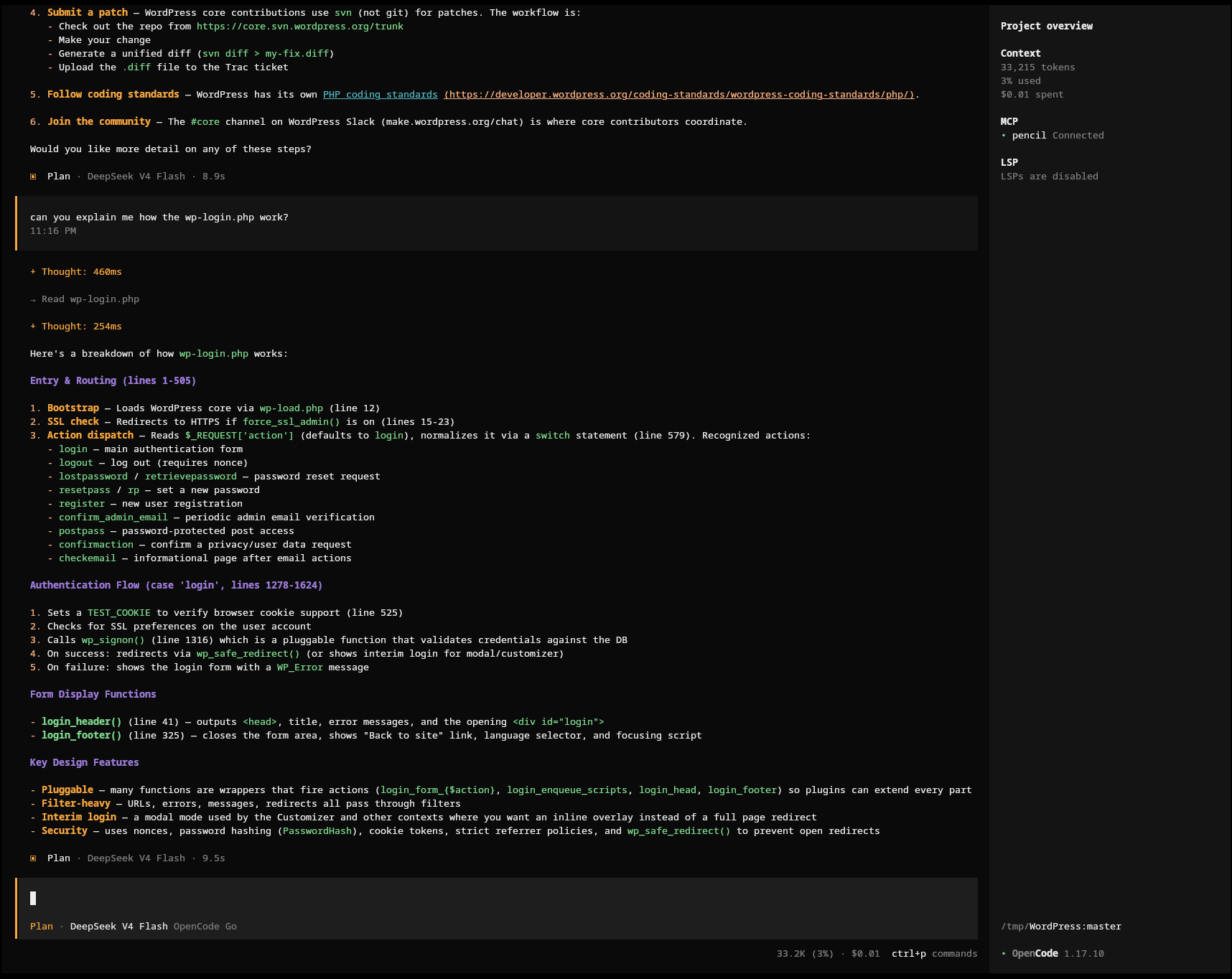
OpenCode CLI interface showing structured AI response about WordPress wp-login.php

Desktop-based applications often either focus on the wrong things, or there is too much going on to keep the important functionalities in mind. OpenCode feels like a tool designed for people who live in the terminal.

Open.. everything

The OpenCode CLI is open source but also open, full stop. It does not try to lock you into anything. It tries to support as many different platforms, subscriptions etc. I want the flexibility to switch AI provider when there is a deal, a new model or to walk away from something I no longer like. Open source also means the community can contribute, audit, and improve it.

The OpenCode Go subscription

This is not needed to use OpenCode if you already have a subscription. If you don’t and/or you’ve been sitting on the fence for quite some time, maybe waiting for the perfect entry point into AI, I suggest you give it a try.

OpenCode Go costs then $10 per month ($5 for the first month). For this $10 you get $60 worth of usage. This is because usage is measured in dollar value rather than raw request counts.

The limits run in rolling windows to avoid overloading the platform. You get a 5-hour rolling limit of $12, a weekly limit of $30, and a monthly limit of $60. The actual number of requests you can make depends on which model you use — cheaper models get you many more requests, advanced ones fewer.

For example, with DeepSeek V4 Flash I get over 30,000 requests per 5-hour window. That is plenty for daily use. More advanced models like GLM cost more per request, so the same window buys fewer of them — I save those for when I need stronger reasoning.

If I need more usage, I can top up credit or let it fall back to my Zen balance. And once I hit the paid limits, the free models included with OpenCode still work.

There is also OpenCode Zen if you want the flexibility of a wider range of models and providers. But for most of what I do, Go covers it.

Models I actually use

I have settled on a few that cover most of my needs:

DeepSeek V4 Flash — my everyday driver. Fast, great value on credits, good for probably 80% of my interactions.

MiMo V2.5 — when I need vision capabilities. Looking at screenshots, debugging UI issues. Similar value to DeepSeek Flash.

GLM 5.x — for infrastructure work and complex multi-step reasoning. Excellent at planning, but I use it selectively because it consumes credits faster.

The ability to pick the right model for the task rather than being locked into one is exactly what I want. Some providers try to keep you inside their ecosystem. OpenCode lets you choose.

Actively maintained

The tool is actively developed. New models are added regularly, the CLI keeps improving, and the community around it is engaged.

Give it a try

If you live in the terminal and want an AI coding assistant that respects that, OpenCode is worth a try. It has become an indispensable part of my daily workflow.

If you want to give it a shot, you can sign up at opencode.ai (full disclosure: that is my referral link, which will give BOTH OF US $5 of extra credits).

Andrea

AWS dynamic IP ranges

Need to know the dynamic IP ranges used by AWS in a specific region? AWS publishes this as a JSON file.

curl -s https://ip-ranges.amazonaws.com/ip-ranges.json | jq '.prefixes | .[] | select((.region == "eu-west-1") and (.service == "EC2")) | .ip_prefix' | sed 's/"//g'

This filters for EC2 in eu-west-1 (Ireland) and outputs CIDR blocks.

To check another service:

curl -s https://ip-ranges.amazonaws.com/ip-ranges.json | jq '.prefixes | .[] | select(.service == "CLOUDFRONT") | .ip_prefix' | sed 's/"//g'

Useful for firewall rules.

Enjoy!

Find sdx device/ATAx mappings

When dealing with hardware, you often see log messages like:

ata9: hard resetting link
ata9: SATA link up 1.5 Gbps (SStatus 113 SControl 310)

To map an ata number to the actual sdX device:

ls -l /sys/class/ata_device/ata9/device/host*/target*/*/block

This shows which sdX corresponds to ata9. Check dmesg for the initial discovery mapping too.

Enjoy!

Convert Squid/timestamps to a human readable format

Somebody had the brilliant idea of using Unix timestamps in Squid log files. It makes parsing easy but reading them is not so human-friendly.

This is an elegant way of solving the problem:

cat /var/log/squid/access.log | perl -p -e 's/^([0-9]*)/"[" . localtime($1) . "]"/e'

The Perl one-liner captures the timestamp at the beginning of each line, converts it to a human-readable date with localtime(), and replaces it inline. The /e flag tells Perl to evaluate the replacement as code rather than a string.

Hope it helps!

sed – match and replace BIND/DNS serial number programmatically

I had to make modifications to several BIND zone files. Sed proved itself invaluable once again.

The zone files looked like this:

domain.com. IN SOA ns1.domain.com. postmaster.domain.com. (
               2015021001   ; Serial
               600          ; Refresh (10 minutes)
               1800         ; Retry (30 minutes)
               3600000      ; Expire (1000 hours)
               3600         ; Minimum (1 hour)
               )

To update the serial number on every zone file at once:

sed -i 's/[0-9]\{10\}\s*; Serial/2016020101   ; Serial/' *.zone

This matches a 10-digit number followed by optional whitespace and “; Serial”, then replaces it with the new serial. The -i flag edits files in place — test without it first to see what would change.

Enjoy!

Remove all non-ascii characters with perl

Sometimes when creating one-liners, the source contains non-ASCII characters that make parsing harder. To strip them all out, use Perl:

cat dirty-source.txt | perl -pe 's/[^[:ascii:]]//g' > clean-output.txt

This replaces every character that is not in the ASCII set with nothing, leaving only clean ASCII text. The same approach works for Windows line endings or other invisible characters by adjusting the character class.

If you prefer a sed alternative for the same task:

sed 's/[^[:print:]]//g' dirty-source.txt > clean-output.txt

Hope it helps!

Converting spreadsheets to text files with ssconvert

ssconvert is a utility shipped with Gnumeric, a command-line spreadsheet converter. It is useful when you have data in a spreadsheet and want to parse it from a script.

ssconvert -O 'separator=;' spreadsheet.ods spreadsheet.csv

This converts an ODS file to CSV using a semicolon as separator. ssconvert supports ODS, XLS, XLSX, CSV, HTML, and more.

You can also export specific sheets:

ssconvert -O 'separator=|;format=raw' --export-type=Gnumeric_stf:stf_csv spreadsheet.ods sheet2.csv

The format=raw option prevents ssconvert from reformatting numbers.

Enjoy!

How to update all docker base images with one command

To pull the latest version of all your Docker images at once:

for docker in $(docker images | awk '{print $1,$2}' | sed 's/ /:/g' | grep -v REPOSITORY); do docker pull $docker; done

This lists all images, extracts repository and tag, formats as repository:tag, and pulls each one.

After updating, old image versions stay on disk. To clean them up:

docker image prune -a

This removes all unused images and frees up space.

Enjoy!

How to update all pip python packages with one command

To update all your pip-installed Python packages at once:

sudo pip install -U `pip list -o | cut -d ' ' -f1 | tr '\n' ' '`

This lists outdated packages with pip list -o, extracts their names, joins them with spaces and passes them to pip install -U. A one-liner that saves you from updating each package individually.

NB: One-liners like this are potentially destructive. Read what they do before running them, especially with sudo.

For a safer alternative on modern systems, use pip-review:

pip install pip-review
pip-review --auto

This prompts you before each update.

Enjoy!