Find sdx device/ATAx mappings

When dealing with hardware, you often see log messages like:

ata9: hard resetting link
ata9: SATA link up 1.5 Gbps (SStatus 113 SControl 310)

To map an ata number to the actual sdX device:

ls -l /sys/class/ata_device/ata9/device/host*/target*/*/block

This shows which sdX corresponds to ata9. Check dmesg for the initial discovery mapping too.

Enjoy!

How to update all docker base images with one command

To pull the latest version of all your Docker images at once:

for docker in $(docker images | awk '{print $1,$2}' | sed 's/ /:/g' | grep -v REPOSITORY); do docker pull $docker; done

This lists all images, extracts repository and tag, formats as repository:tag, and pulls each one.

After updating, old image versions stay on disk. To clean them up:

docker image prune -a

This removes all unused images and frees up space.

Enjoy!

How to update all pip python packages with one command

To update all your pip-installed Python packages at once:

sudo pip install -U `pip list -o | cut -d ' ' -f1 | tr '\n' ' '`

This lists outdated packages with pip list -o, extracts their names, joins them with spaces and passes them to pip install -U. A one-liner that saves you from updating each package individually.

NB: One-liners like this are potentially destructive. Read what they do before running them, especially with sudo.

For a safer alternative on modern systems, use pip-review:

pip install pip-review
pip-review --auto

This prompts you before each update.

Enjoy!

Proxmox – Passthrough card/device to openVz container

I wanted to passthrough a dual tuner TV card (Hauppauge WinTV Nova-T-500) to an openVz container in order to use tvHeadEnd. The procedure should be the same for any PCI device.

First, identify the device you want to passthrough:

tree /dev/dvb/

This shows the device nodes under /dev/dvb/. Then mount the host device into the container by editing the container configuration file (/etc/vz/conf/CT_ID.conf) and adding:

DEVICES="c:212:*:rw"

Replace 212 with the major device number of your device (visible with ls -l /dev/dvb/…). After a restart of the container, the device should be accessible from within it.

You can verify with:

ls -l /dev/dvb/

Enjoy!

Use Remmina to satisfy all your remote connection needs

Remmina is a remote desktop client that supports multiple network protocols — RDP, VNC, NX, XDMCP and SSH — in a nice and very user-friendly GUI.

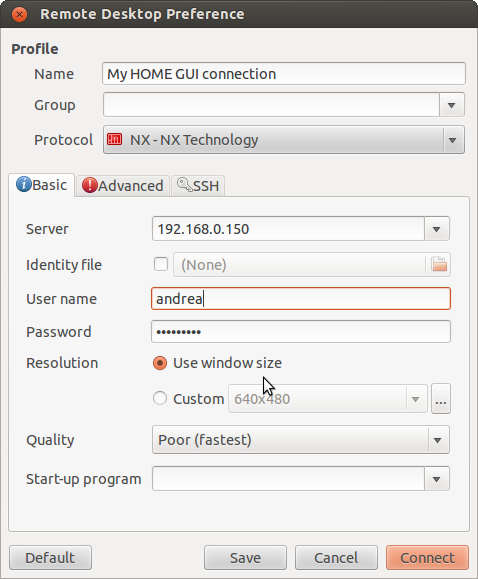
In its basic usage, you only need to know the protocol, the server address, username and password.

Remmina basic connection tab

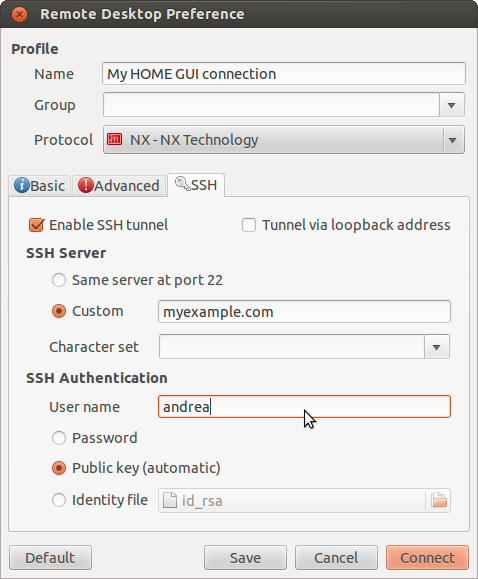
This works perfectly if you are in the same LAN. For connections over the internet, Remmina can tunnel through SSH, configured in the SSH tab:

Remmina SSH tunnel settings

It supports RDP for Windows machines, VNC for Linux desktops, and NX for remote sessions. All saved in a single, clean interface.

Enjoy!

Test email from command line

When you set up email forwarding or configure a new MTA, you will want to confirm it is working before relying on it for alerts. A quick test is all you need.

Send a test message

mail -s Test myEmail@gmail.com

If the mail command is not available, install it with apt-get install mailutils. Then check your inbox.

If it does not arrive

Run mailq to see if the message is stuck in the queue. The mail log at /var/log/mail.log will also show the delivery attempt and any errors.

Enjoy!

Ban offending IP addresses – fail2ban

If you run a public SSH server, you will see failed login attempts in your logs constantly. Fail2ban monitors those logs and adds firewall rules to block offending IPs.

Here is what you see in /var/log/auth.log from a machine that has been online for a few days:

Nov 20 06:30:43 serverName sshd[63467]: Address 91.191.166.95 maps to 91-191-166-95.netdirekt.com.tr
Nov 20 00:47:45 serverName sshd[24617]: Invalid user fluffy from 221.179.34.37
Nov 20 00:47:55 serverName sshd[24617]: Failed password for invalid user fluffy from 221.179.34.37

Install and configure:

apt-get install fail2ban
cp /etc/fail2ban/jail.conf /etc/fail2ban/jail.local

Edit the .local file. A typical SSH jail:

[DEFAULT]
ignoreip = 127.0.0.1 192.168.1.0/24
bantime = 600
maxretry = 3

[ssh]
enabled = true

Check banned IPs:

iptables -L
iptables -L --line-numbers

Remove a specific ban:

iptables -D fail2ban-ssh 

On modern systems, use fail2ban-client for an easier overview:

sudo fail2ban-client status sshd

Set it up once and it will quietly block thousands of attempts without you thinking about it.

Hope it helps!

Send system emails using gmail as smtp server

I wrote before about sending system emails using sendmail as a smarthost. Here is an alternative approach using Gmail SMTP servers — often simpler to set up for home servers and small VPS.

The software that makes this easy is called ssmtp. It is a lightweight MTA that forwards mail to a configured SMTP relay, perfect for this use case.

Installation and configuration

Install ssmtp:

apt-get install ssmtp

Edit /etc/ssmtp/ssmtp.conf:

root=myAccount@gmail.com
mailhub=smtp.gmail.com:587
hostname=myHostname.com
UseSTARTTLS=YES
AuthUser=myAccount
AuthPass=myPassword
FromLineOverride=YES

And set your address in /etc/ssmtp/revaliases:

root:myAccount@gmail.com:smtp.gmail.com:587

That is it. From now on, system emails are delivered through your Gmail account. If you use two-factor authentication, generate an app-specific password instead of using your main password.

Enjoy!

How to shred/wipe disks/partitions

When you delete a file normally, the data stays on the disk — the filesystem just marks the space as available. The data can be recovered with the right tools. If you need to make sure it is really gone, you can overwrite it securely.

shred -vzf -n 5 /dev/sdb

The -v flag shows progress, -z adds a final overwrite with zeros to hide the fact that shredding took place, -n specifies the number of passes (5 in this example), and the device is the disk or partition you want to wipe.

Be careful with this command — there is no undo. Double-check the device name before running it.

Shredding a single file

If you only need to destroy a specific file rather than an entire disk, use shred on a file directly:

shred -vzu sensitive-file.pdf

The -u flag tells shred to delete the file after overwriting it. Without -u the file remains in place but with its content overwritten.

Wiping with dd for more control

If you want to see exactly what is being written and you know the disk size, dd gives you more control:

sudo dd if=/dev/urandom of=/dev/sdb bs=4096 status=progress

This writes random data in 4K blocks and shows a progress indicator. Replace urandom with zero (if=/dev/zero) for a faster but less thorough wipe. The trade-off is that a single zero pass is detectable — someone with specialised equipment can still read the residual magnetic signature.

Verifying the wipe

After wiping a disk, you can verify that no readable data remains:

sudo xxd /dev/sdb | head

If the output shows consistent patterns (all zeros or all random bytes), the wipe was successful. If you see fragments of old filesystem structures, you might need another pass.

Note on SSDs

Shred relies on overwriting the same physical sectors multiple times. On modern SSDs, wear-levelling and TRIM make this unreliable — the drive may remap sectors and leave old data in place. For SSDs, use the ATA Secure Erase command built into the drive firmware instead. Most Linux distributions include the hdparm or nvme-cli tools for this:

sudo hdparm --user-master u --security-set-pass p /dev/sdb
sudo hdparm --user-master u --security-erase p /dev/sdb

Or for NVMe drives:

sudo nvme format /dev/nvme0n1 -s1

The best defence against needing to wipe a disk securely is full-disk encryption. If the drive was encrypted from day one, a single pass of zeros is enough to make the data unrecoverable — the encryption keys are gone, and the rest is ciphertext.

Enjoy!