Signal vs Session vs SimpleX — Private Messaging Compared

Signal, Session and SimpleX compared: how each private messenger handles metadata differently, and which one to pick for your privacy needs.

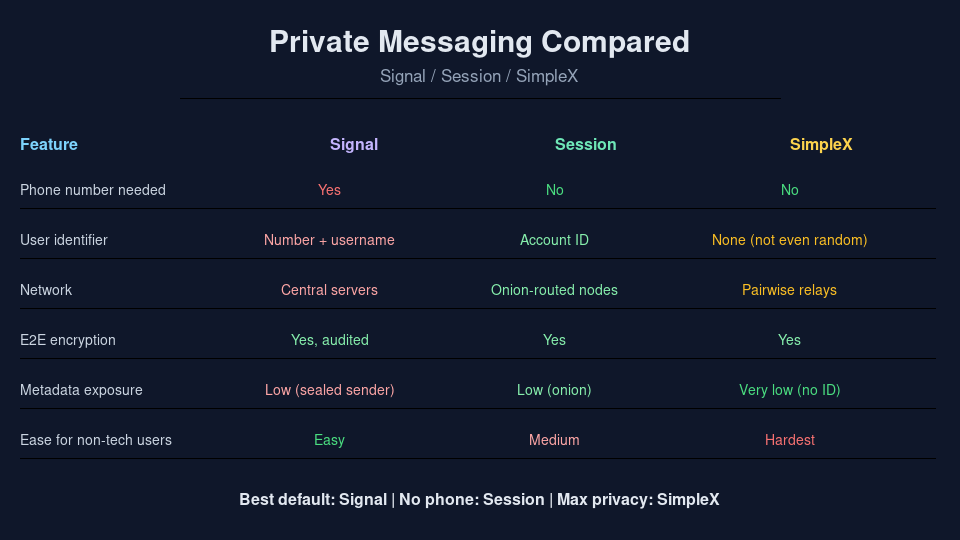
Comparison table of the Signal, Session and SimpleX private messengers

If you’re trying to move away from WhatsApp or Telegram, three names come up again and again: Signal, Session, and SimpleX. They all claim to be private, end-to-end encrypted messaging apps, and they’re all open source.

The content encryption is genuinely good in all three. Where they really differ — and it’s a much more important difference — is metadata: who you talk to, when, and how often. That’s the thing each of them handles completely differently.

I’ve used all three, and here’s my honest take on what each one actually gets you — and what it costs you.

The Quick Overview

  • Signal — The best default for almost everyone. Centralised, run by a US non-profit, requires a phone number to register (usernames hide it from contacts, not from Signal).
  • Session — Decentralised, no phone number at all, routes messages through an onion network of community-run nodes. You get a permanent Session ID instead of a number.
  • SimpleX — The most radical: it has no user identifier at all — not even a random ID. You connect through one-time invitation links instead of a username or number.

Signal — The Practical Default

Signal is the one your contacts are most likely to already use, and for most people that single fact is decisive. An encrypted messenger nobody you know has installed protects nothing — it just sits on your phone looking smug.

It’s run by the Signal Foundation, a non-profit. The protocol is the double-ratchet design that WhatsApp, Google Messages and Facebook Messenger all licensed, and it’s been independently audited.

What Signal does well

  • E2EE by default — Every chat and call is encrypted end to end, no setting to hunt for. Group chats, voice calls, video calls, linked devices.
  • Audited, battle-tested — The Signal Protocol is the industry reference for forward secrecy and break-in recovery.
  • Minimal metadata — Sealed sender hides who sent a message from Signal’s own servers. Signal’s published transparency reports show it retains almost nothing: registration date and last connection time.
  • Easy for non-technical people — Install, verify your number, done. Your mum can use it.

Where Signal falls short

  • Phone number required — You still need one to register. Usernames (added in 2024) hide the number from the people you chat with, but not from Signal itself. Your account is tied to a number, and a number is a strong real-world identifier.
  • Centralised — All traffic flows through Signal’s servers, run by a US non-profit subject to US legal process. They keep little, but they’re a central point of control.

Session — Decentralised, No Phone Number

Session started as a fork of Signal that removed the phone number entirely. Instead of a number, you get a permanent Session ID — a 66-character public key. No phone number, no email, nothing personal required to sign up.

Traffic is onion-routed through the Session Network, a decentralised set of nodes run by a global community. No single node sees both ends of a conversation, and offline messages are buffered until you fetch them.

What Session does well

  • No phone number, no email — You can create an account with zero personal information. This is the one to pick when registering a phone number is impossible or unsafe.
  • Decentralised — Onion routing over many community nodes makes it far harder for any operator to see your social graph or link your IP address to your messages.
  • Familiar feel — It looks and works like a conventional messenger, so the learning curve is gentler than SimpleX.

Where Session falls short

  • No forward secrecy (yet) — Session removed perfect forward secrecy back in 2021. If a device is compromised, past messages under the same Session ID can be decrypted. A V2 protocol that restores PFS and adds post-quantum protection was announced in December 2025, but it’s still being designed.
  • Permanent ID — Your Session ID is stable across every conversation. It’s not linked to your legal identity, but once anything ties that ID to you, it retroactively ties everything it ever touched.
  • Smaller network — Fewer users, fewer contacts already on it, and some reported reliability quirks with group delivery and device sync.

SimpleX — No Identifier At All

SimpleX takes the most aggressive position in private messaging right now: it has no user identifiers whatsoever — not a phone number, not a username, not even a random account ID. It describes itself as “the first network without user IDs”.

Instead of a lookup-by-identifier, you connect to people through one-time invitation links you exchange out of band. Every contact and group lives on your device, not on a server’s database. Messages look like random noise to the relays that briefly hold them.

What SimpleX does well

  • Strongest metadata story — There’s no account to subpoena, no identifier appearing in two places, no social graph accumulating on a server. Whoever you talk to can’t be correlated.
  • Everyone runs the network — No single entity controls it. Anyone can run a SimpleX server, and the protocol passes through relays you choose.
  • Solid encryption — Double-ratchet end-to-end encryption with forward secrecy, plus private message routing on by default since v6.0. The protocol design was independently reviewed by Trail of Bits in 2024.

Where SimpleX falls short

  • Friction — No identifier means nobody can find you by username. Every new connection means exchanging a one-time link through some other channel — which is also the moment you might leak the very association you were protecting.
  • Harder recovery — With no server-side identity to restore from, moving devices and recovering an account is more involved than a phone-number account.
  • Young and smaller — It’s the newest of the three, the ecosystem is younger, and the user base is far smaller. Less battle-tested than Signal.

Which One Should You Pick?

  • Almost everyone: Signal. The network effect is the security property — an encrypted messenger nobody you know uses protects nothing. Turn on a username so you stop handing out your number.
  • Can’t register a phone number: Session. It’s the most usable option that requires nothing personal at signup.
  • Journalists, sources, sensitive contact relationships: SimpleX as a second messenger, alongside Signal for everyday use. Use it specifically when the fact that two people are talking is itself the sensitive part.

Whichever you pick, remember the half of the picture most people ignore: content encryption is only half the story. Your network and your habits are the other half.

Further Reading

Check out the Signal directory listing on The Web Is Free for more details.

Download Session at getsession.org and SimpleX at simplex.chat — both free, no phone number required.

Related Articles

What do you think? Have you made the switch from WhatsApp or Telegram, and which of these did you land on?
Andrea

Drush intro – Drupal

Drush is a command-line shell interface for Drupal. It lets you do almost anything you would do through the Drupal admin interface — enabling modules, clearing caches, running cron, backing up the site — all from the terminal.

Installation

The preferred way to install Drush is via the official PEAR channel, but it can also be installed manually on a shared server.

Backup and restore

archive-dump backs up the codebase, files, and database into a single file:

drush archive-dump
drush archive-restore

Common commands

drush pm-download 
drush pm-enable 
drush pm-disable 
drush cc all
drush cron
drush sql-dump
drush uli

Enjoy!

XBMC 11 (aka Eden) stable release download available

XBMC Media Center (formerly Xbox Media Center) is a free and open source cross-platform media centre and HTPC application. I have been using it for just a few months but I never tried any media centre as good and configurable as this one.

Version 11, codenamed “Eden”, was a significant release. It introduced a new skin engine that made it easier for designers to create custom interfaces. Library management was overhauled — scraping metadata for movies and TV shows became more accurate and faster. Hardware acceleration was improved, making HD playback smoother on a wider range of hardware.

Eden also added support for more audio formats, better UPnP streaming, and an improved add-on system. The PVR (live TV) integration, while still marked as a beta feature, was a promising addition for those looking to replace their set-top box entirely.

If you have a home theatre PC or even just a computer connected to your TV, XBMC turns it into a proper media centre — movies, TV shows, music, pictures, all with a beautiful interface designed for a remote control. It supports almost every file format you can throw at it and runs on Windows, Mac OS X, Linux, and even the original Xbox.

Download your free version and give it a try!

Download the free version and give it a try!

Give it a try!

Re-open last tab/tabs closed on Google Chrome/Chromium

We’ve all done it. You’re flicking through tabs, your hand moves faster than your brain, and bam — you closed a tab you still needed. You stare at the screen for a second before remembering there’s a keyboard shortcut for that.

Ctrl + Shift + T (or Cmd + Shift + T on a Mac).

That’s it. Press it once and the last tab you closed comes back. Press it again and the one before that comes back. Chrome and Chromium keep a stack of your recently closed tabs in memory, so you can walk backwards through your mistakes as far as you need.

It works across sessions

If you close Chrome entirely and reopen it, Ctrl + Shift + T will restore the last window you had open with all its tabs. This is separate from the “Continue where you left off” startup setting — it’s a one-time restore that works even if you have Chrome set to start on a blank page.

Right-click also works

If you prefer the mouse, right-click on any tab and select “Reopen closed tab” from the menu. Same result, one extra click.

What about the History panel?

For tabs you closed a while ago (not just the last few), go to Menu > History or press Ctrl + H. You’ll see a full chronological list — the “Recently closed” section at the top shows your last few tab closures with their full titles, making it easier to find the one you actually want.

The shortcut is one of those things you don’t think about until you need it. And once you know it, you’ll use it more often than you’d expect. :-)

Free 3GB SpiderOak account – (Dropbox alternative)

SpidearOak gives you 2GB to start with. If you want to start with 3GB instead use this link.
Keep reading if you want to find out more.

So, first of all, SpiderOak is a web-based file hosting service “similar” to Dropbox.
You don’t know what Dropbox is? oh well :-). You can have a look at the Dropbox intro video or keep reading..
Anyway, I’ve used Dropbox for a couple of years, until last month.
I was using it to share some files among different computers/phone and I must say that it has always worked well for me.
I always look for software that do things better but, in this case, I was even more encouraged to find an alternative when, last July, Dropbox made its license more restrictive.
As you can see from the last paragraph in the Wikipedia Dropbox criticism “In early July 2011 Dropbox revised their Terms of Service several times after first including language that appeared to give them an unrevokable license to any material uploaded. They subsequently clarified that language in response to the maelstrom of criticism and concern that resulted from artists and corporate users with confidential data.”
The bottom line here is. Dropbox is still a good service but using it for confidential data MIGHT (I repeat myself, MIGHT) be risky.

The Dropbox staff can get access to your data. No one is saying that they do (on a regular basis at least).
So, SpiderOak, is a good and safer alternative to Dropbox.
Safer because SpiderOak based their entire architecture on a zero-knowledge policy and encryption.
I’ve already installed it on three Ubuntu boxes and my Android phone and I can guarantee that is fast, easy to use and has a nice GUI.
SpiderOak-GUI
As you can see from the screenshot, it can be used to backup, synchronize and share data.

Another great thing is that you can get up to 50GB of space for free (with a refer-a-friend program).

There are two huge differences between the SpiderOak and Dropbox refer-a-friend program:
1) SpiderOak gives you 1GB per each friend (not 250MB);
2) SpiderOak gives BOTH of you that extra GB (not the referrer only like Dropbox).

So, for example, this is my SpiderOak referral link. If you subscribe to their service trough that link you get 1GB extra as well as me. That makes you start from 3GB rather than 2 only…

It’s good for me, it’s good for you. I like it that way… :-D
It’s also cross-platform so you can enjoy it on Linux, Mac, Windows, IOS and Android.
You can add as many devices as you want.

Under Ubuntu Lucid (and probably others similar as well), if the “Launch SpiderOak at Login” option does not work for you add it manually:
Preferences -> Startup applications -> Add .
Name: SpiderOak (or whatever you want)
Command: /usr/bin/SpiderOak (which is the result of “which SpiderOak”)
Comment: Online backup/sync solution (or whatever you want)

Once again. Here is the link to open a 3GB SpiderOak account.
That’s all for now. Hope you enjoy your new free sharing service.

Hope it helps!

IDE Netbeans 7.0 is out: PHP, Java SE/EE and C/C++

Netbeans 7 is out. I have been using it for PHP, at work as well as at home, for almost two years and I have to say it has become by far my favourite PHP IDE.

The Netbeans IDE started in 1996 for Java. PHP support came with version 6.5 in late 2008. Since then, every release has improved significantly.

What I like about it is that it just works out of the box — the PHP code completion, the debugger integration with Xdebug, the SVN/Git support built right in. You don’t need to piece together half a dozen plugins to get a productive environment.

One of my favourite features is the ability to search across files with Alt+Shift+O. It’s one of those things you don’t appreciate until you try going back to an IDE that doesn’t have it.

Curious about it? Download the version you need from the Netbeans site and give it a try.

Enjoy it!

Wireless Android/pc file transfer with OnAir

I recently bought a new HTC Wildfire and was looking for a way to transfer files between my computer and the phone without needing a USB cable all the time.

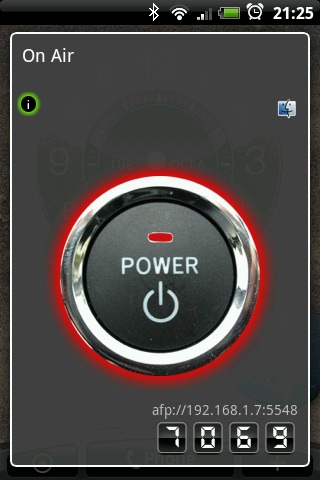
OnAir is an Android app that turns your phone into a wireless file server. You install it, start the service, and browse to the IP and port it shows you — from there you can upload, download, and manage files over WiFi.

OnAir Android app screenshot

The setup is really simple:

  1. Install OnAir from the Android Market
  2. Open the app and start the server
  3. Note the IP address and port shown on screen
  4. Open your browser on your PC and go to that address

You will see a simple web interface with your phone’s SD card contents. You can upload files from your PC to the phone, download files from the phone to your PC, or delete files you no longer need. It supports multiple file selection and works with any browser.

It is not as fast as USB for large transfers — WiFi is slower than a cable — but for quickly moving a few files across the room it is very convenient. No cables, no drivers, no hassle. Perfect for when you are on the sofa and just want to transfer a PDF or a photo.

Enjoy! :-)

Rotate a video with Avidemux GTK

A few times I recorded a video with my camera turned in portrait mode. It looks nice on the camera screen but, as soon as you watch it on the PC, you realise something went wrong… :-|

Fortunately there is software that can fix this. I tried Avidemux and was surprised at how easy it was.

Avidemux is a nice open-source video editor that runs on Windows, Mac OS X, Linux and BSD.

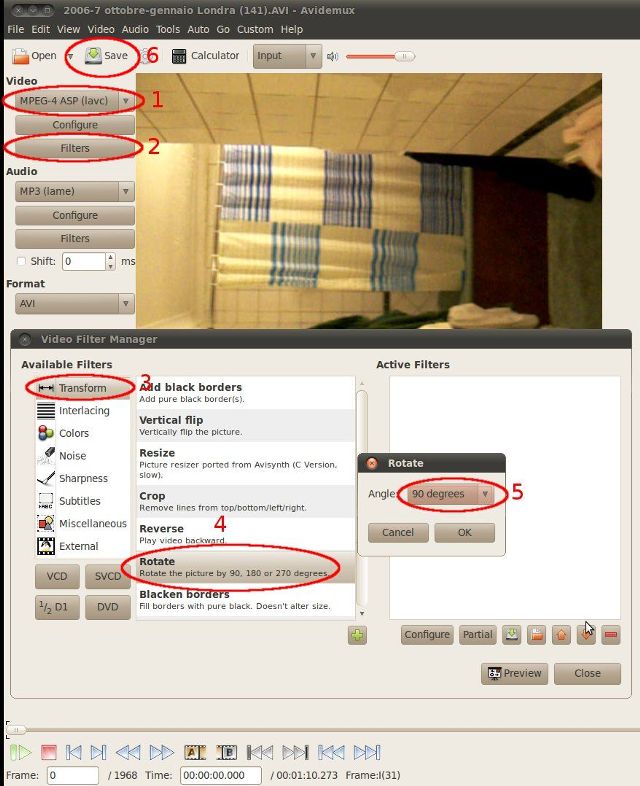
Here are the steps (see screenshot below):

  • Select the format of the “Video” to produce
  • Open the “Filters” window
  • Select the “Transform” category
  • Choose “Rotate” and add it
  • Pick the rotation you need, click OK and close
  • Save the file and let Avidemux do the job

Avidemux steps to rotate a video

Enjoy!

How to install Miro 3.5 on Ubuntu 10.04

Miro 3.5 has been released. The major improvement, in my opinion, is the ability to convert video and audio files for other devices — Android OS for example.

Ubuntu 10.04 is bundled with Miro 3.0. To upgrade, add the repository:

sudo add-apt-repository ppa:pcf/miro-releases
sudo apt-get update
sudo apt-get install miro

Miro 3.5 screenshot

Enjoy the file conversion! :-)