How to upgrade Debian 12 (bookworm) to Debian 13 (trixie)

Debian 13 Trixie upgrade

I’ve been upgrading my Debian 12 (bookworm) server fleet to Debian 13 (trixie).

Here is the successful process I ended up following for them all.

The process is essentially: update your package lists, switch the repository URLs from bookworm to trixie, and run the upgrade. Here is how I did it.

Step 1: Make sure your current system is fully up to date

Before switching repositories, bring your Debian 12 install to the latest patch level:

apt update
apt full-upgrade
apt autoremove
apt autoclean

Reboot afterwards so you are running the latest kernel before the upgrade:

reboot

Step 2: Backup your apt configuration

Good practice before changing anything:

cp -a /etc/apt /etc/apt.bak.$(date +%F)

If something goes wrong, you can restore the entire apt configuration from the backup.

Step 3: Switch repositories from bookworm to trixie

This is the core of the upgrade. Replace every occurrence of “bookworm” with “trixie” in your apt sources:

sed -i 's/bookworm/trixie/g' /etc/apt/sources.list

For any additional files in sources.list.d, handle them the same way:

find /etc/apt/sources.list.d -type f \( -name '*.list' -o -name '*.sources' \) -exec sed -i 's/bookworm/trixie/g' {} \;

Step 4: Update package lists

apt update

You will likely see key warnings at this point as you don’t have the latest keys yet.

Step 5: Refresh the keyring

apt install debian-archive-keyring
apt update

This installs the updated signing keys for the trixie repositories and clears the warnings.

Step 6: Perform the upgrade

I used a two-phase approach which is somewhat safer.

Phase 1: Upgrade existing packages without pulling in new dependencies:

apt upgrade --without-new-pkgs

Phase 2: Full upgrade — installs new packages, removes obsolete ones, and completes the distribution upgrade:

apt full-upgrade

This will take a while depending on your system and internet connection. Let it run.

Step 7: Cleanup

apt autoremove
apt autoclean

Step 8: Reboot

reboot

The kernel and systemd will have been upgraded, so a reboot is required.

Step 9: Verify

cat /etc/os-release
cat /etc/debian_version

You should see “Debian GNU/Linux 13 (trixie)” or similar. If you prefer the classic lsb_release output:

apt install lsb-release -y
lsb_release -a

Notes

If you are using a desktop environment or have third-party repositories (Docker, PostgreSQL, etc.), check that they have trixie-compatible entries in sources.list.d after the switch and, in case, update them accordingly.

As always, make sure you have a recent backup before upgrading a production system.

Related Articles

I hope you find this useful!

Testing Paperclip: What I Learned

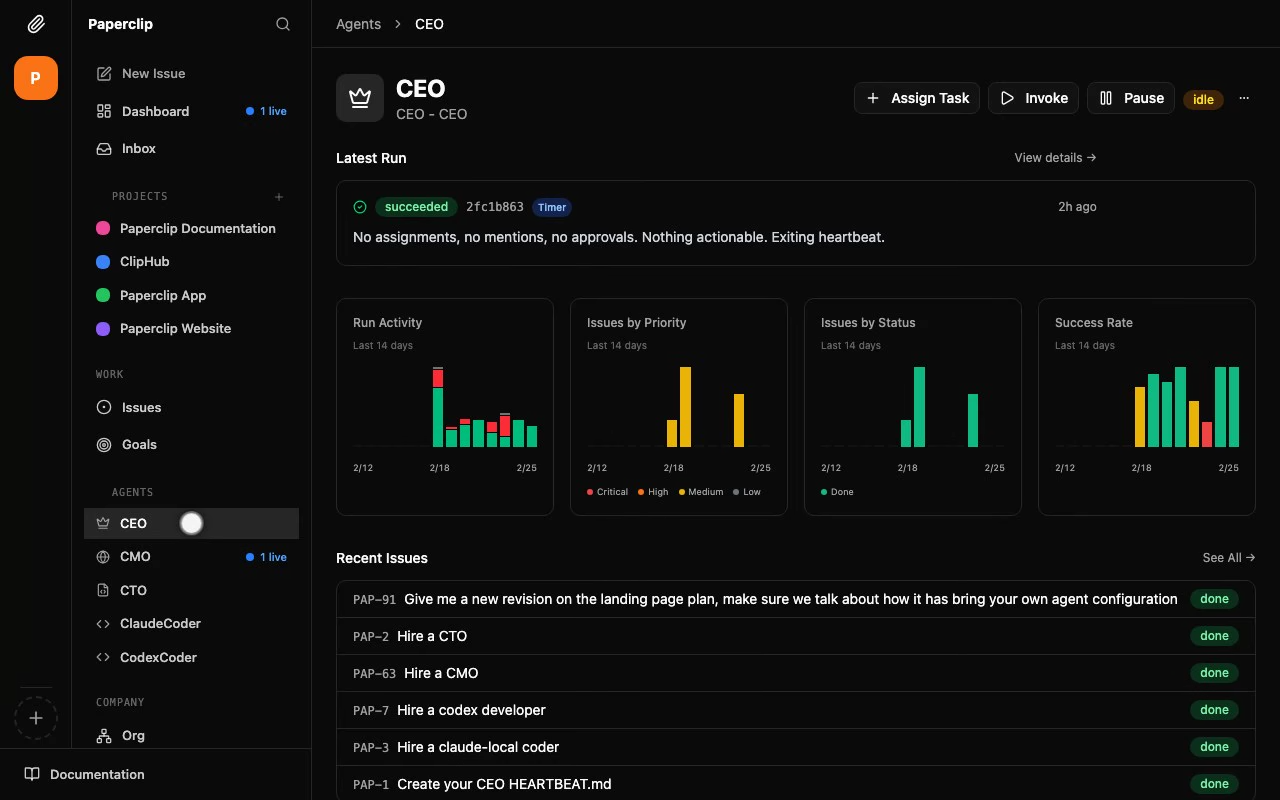
Paperclip dashboard showing agent orchestration UI

Paperclip recently caught my attention as it allows you to orchestrate teams of specialised AI agents through a beautiful self-hosted web UI, so I had to give it a try.

What Works Well

The concept is solid: specialized agents for different tasks, all tracked through a ticketing system. The UI looks clean and modern. Navigation feels intuitive. Watching my “CEO” agent hire a UI/UX designer, then a CTO, all coordinating through the interface, was entertaining.

For users who want AI agent orchestration without building everything from scratch, Paperclip provides a polished starting point.

Where It Fell Short for Me

I deployed Paperclip using Docker Compose (my preferred approach for managing services). The setup required some debugging—it always does, of course. Permissions, configs of some utilities not where I was expecting to find them. Probably my fault for trying to optimise too early but, really, I was trying to learn. Nothing insurmountable, but it added complexity not needed at the beginning of a project.

More importantly, I noticed my coding credits depleting steadily while Paperclip was running… with nothing actually happening. My team consisted of a CEO and a designer, happily chatting away, checking tickets in and out, burning credits through heartbeat checks and status polls. The UI showed “agents working” but no real output was being produced.

The pretty interface, it turns out, hides the mechanics. For someone who lives in logs and CLI output, this opacity was a little confusing.

The Simpler Alternative

I stepped back and asked: what am I actually trying to achieve here? Agent orchestration. I then investigated how OpenClaw could solve the same problem and realised I could probably achieve most of what I wanted without the extra software and overhead. Like I said, the UI/dashboard is nice but I can’t just sit there and watch the credits slowly disappear.

If you’re already running OpenClaw, n8n, or similar tools? You’re probably already 80% there with infrastructure you understand end-to-end.

What Paperclip Does Differently

Here’s where Paperclip differs from other harnesses. It’s an orchestrator of harnesses, therefore it can orchestrate multiple different AI harnesses as a single team. As Paperclip puts it “if OpenClaw is an employee, Paperclip is the company”. The employees don’t need to be all of the same type, you could have Claude Code, an OpenClaw and an Hermes Agent all working as part of the same team/organisation.

Paperclip on GitHub — check out the project if you’re curious.

All working together, checking out tickets, assigning work to each other. Paperclip lets you mix and match.

For me, that wasn’t the missing piece. But if you’re building a multi-agent system where different agents need different strengths, it’s worth considering.

If You Want to Try It

The concept shows promise. The project has real potential. If you’re curious about AI agent orchestration and want something with a polished UI, give it a spin.

Learn from my mistakes:

  • When deploying with Docker, pin a stable release, not latest
  • Watch your credit usage closely until you understand what it’s doing (maybe set some alerts if you can)
  • Start with a small project to see results quickly
  • Understand that there is some complexity going on which is nicely hidden under the UI

If you, on the other hand, are already using some alternative AI harness and all you want is an easier way to manage an AI team/agents, look more deeply into what your software of choice already supports.

Hope it helps!

Andrea

Related Articles

AWS dynamic IP ranges

Need to know the dynamic IP ranges used by AWS in a specific region? AWS publishes this as a JSON file.

curl -s https://ip-ranges.amazonaws.com/ip-ranges.json | jq '.prefixes | .[] | select((.region == "eu-west-1") and (.service == "EC2")) | .ip_prefix' | sed 's/"//g'

This filters for EC2 in eu-west-1 (Ireland) and outputs CIDR blocks.

To check another service:

curl -s https://ip-ranges.amazonaws.com/ip-ranges.json | jq '.prefixes | .[] | select(.service == "CLOUDFRONT") | .ip_prefix' | sed 's/"//g'

Useful for firewall rules.

Enjoy!

How to soft reset Linux disks

Sometimes disks stop responding and cause system slowness because the kernel is waiting for a response that never comes. The disk appears 100% utilised in iostat even though nothing is being read or written.

To avoid rebooting, reset the device. First find it:

lsscsi

Then remove and rescan:

echo 1 > /sys/block/sdX/device/delete
echo "- - -" > /sys/class/scsi_host/hostX/scan

Replace sdX with the affected device and hostX with the SCSI host number from lsscsi.

Hope it helps!

Find sdx device/ATAx mappings

When dealing with hardware, you often see log messages like:

ata9: hard resetting link
ata9: SATA link up 1.5 Gbps (SStatus 113 SControl 310)

To map an ata number to the actual sdX device:

ls -l /sys/class/ata_device/ata9/device/host*/target*/*/block

This shows which sdX corresponds to ata9. Check dmesg for the initial discovery mapping too.

Enjoy!

sed – match and replace BIND/DNS serial number programmatically

I had to make modifications to several BIND zone files. Sed proved itself invaluable once again.

The zone files looked like this:

domain.com. IN SOA ns1.domain.com. postmaster.domain.com. (
               2015021001   ; Serial
               600          ; Refresh (10 minutes)
               1800         ; Retry (30 minutes)
               3600000      ; Expire (1000 hours)
               3600         ; Minimum (1 hour)
               )

To update the serial number on every zone file at once:

sed -i 's/[0-9]\{10\}\s*; Serial/2016020101   ; Serial/' *.zone

This matches a 10-digit number followed by optional whitespace and “; Serial”, then replaces it with the new serial. The -i flag edits files in place — test without it first to see what would change.

Enjoy!

Remove all non-ascii characters with perl

Sometimes when creating one-liners, the source contains non-ASCII characters that make parsing harder. To strip them all out, use Perl:

cat dirty-source.txt | perl -pe 's/[^[:ascii:]]//g' > clean-output.txt

This replaces every character that is not in the ASCII set with nothing, leaving only clean ASCII text. The same approach works for Windows line endings or other invisible characters by adjusting the character class.

If you prefer a sed alternative for the same task:

sed 's/[^[:print:]]//g' dirty-source.txt > clean-output.txt

Hope it helps!

Converting spreadsheets to text files with ssconvert

ssconvert is a utility shipped with Gnumeric, a command-line spreadsheet converter. It is useful when you have data in a spreadsheet and want to parse it from a script.

ssconvert -O 'separator=;' spreadsheet.ods spreadsheet.csv

This converts an ODS file to CSV using a semicolon as separator. ssconvert supports ODS, XLS, XLSX, CSV, HTML, and more.

You can also export specific sheets:

ssconvert -O 'separator=|;format=raw' --export-type=Gnumeric_stf:stf_csv spreadsheet.ods sheet2.csv

The format=raw option prevents ssconvert from reformatting numbers.

Enjoy!

How to update all docker base images with one command

To pull the latest version of all your Docker images at once:

for docker in $(docker images | awk '{print $1,$2}' | sed 's/ /:/g' | grep -v REPOSITORY); do docker pull $docker; done

This lists all images, extracts repository and tag, formats as repository:tag, and pulls each one.

After updating, old image versions stay on disk. To clean them up:

docker image prune -a

This removes all unused images and frees up space.

Enjoy!

How to update all pip python packages with one command

To update all your pip-installed Python packages at once:

sudo pip install -U `pip list -o | cut -d ' ' -f1 | tr '\n' ' '`

This lists outdated packages with pip list -o, extracts their names, joins them with spaces and passes them to pip install -U. A one-liner that saves you from updating each package individually.

NB: One-liners like this are potentially destructive. Read what they do before running them, especially with sudo.

For a safer alternative on modern systems, use pip-review:

pip install pip-review
pip-review --auto

This prompts you before each update.

Enjoy!