Use Remmina to satisfy all your remote connection needs

Remmina is a remote desktop client that supports multiple network protocols — RDP, VNC, NX, XDMCP and SSH — in a nice and very user-friendly GUI.

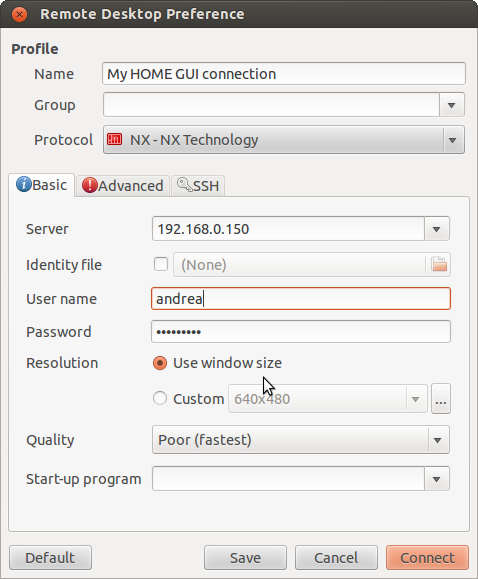
In its basic usage, you only need to know the protocol, the server address, username and password.

Remmina basic connection tab

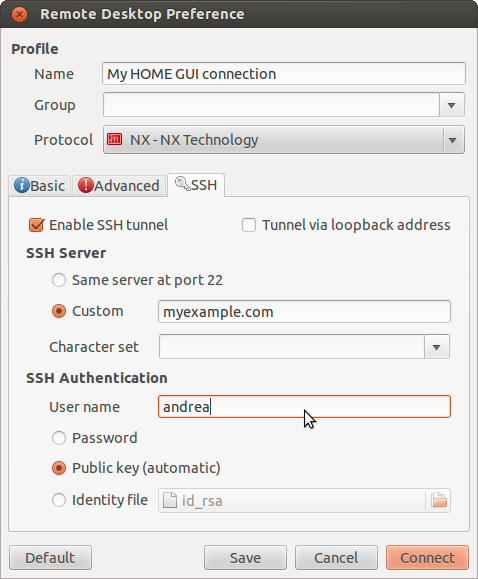
This works perfectly if you are in the same LAN. For connections over the internet, Remmina can tunnel through SSH, configured in the SSH tab:

Remmina SSH tunnel settings

It supports RDP for Windows machines, VNC for Linux desktops, and NX for remote sessions. All saved in a single, clean interface.

Enjoy!

Ban offending IP addresses – fail2ban

If you run a public SSH server, you will see failed login attempts in your logs constantly. Fail2ban monitors those logs and adds firewall rules to block offending IPs.

Here is what you see in /var/log/auth.log from a machine that has been online for a few days:

Nov 20 06:30:43 serverName sshd[63467]: Address 91.191.166.95 maps to 91-191-166-95.netdirekt.com.tr
Nov 20 00:47:45 serverName sshd[24617]: Invalid user fluffy from 221.179.34.37
Nov 20 00:47:55 serverName sshd[24617]: Failed password for invalid user fluffy from 221.179.34.37

Install and configure:

apt-get install fail2ban
cp /etc/fail2ban/jail.conf /etc/fail2ban/jail.local

Edit the .local file. A typical SSH jail:

[DEFAULT]
ignoreip = 127.0.0.1 192.168.1.0/24
bantime = 600
maxretry = 3

[ssh]
enabled = true

Check banned IPs:

iptables -L
iptables -L --line-numbers

Remove a specific ban:

iptables -D fail2ban-ssh 

On modern systems, use fail2ban-client for an easier overview:

sudo fail2ban-client status sshd

Set it up once and it will quietly block thousands of attempts without you thinking about it.

Hope it helps!

Install NX server/client on Ubuntu Lucid

My favourite NX server is Freenx.
FreeNX is a GPL implementation of the NX server/client that allows you to graphically access your machine over the Internet.
FreeNX runs natively on SSH, it’s open source and, above all, fast.

So, first of all you need to add the free-nx repository:

sudo add-apt-repository ppa:freenx-team

and then update and install freenx:

sudo apt-get update
sudo apt-get install freenx

The client I use instead, is from NoMachine.
The Linux version can be download from here.
If you use a different Ubuntu version you can follow the Freenx documentation.

Enjoy!

Launch remote GUI locally trough SSH

There are times when it is easier to change a setting through a GUI rather than the command line. You can launch a remote GUI application on your local machine through SSH.

Both machines need to be Linux with a desktop environment installed. I have tested this with two Ubuntu 10.04 systems.

Basic X11 forwarding

Adding the -X parameter to SSH enables X11 forwarding:

ssh -X user@remote-server

Once connected, any GUI application you launch from the terminal displays on your local machine:

gedit /etc/remote-config-file.conf

Trusted X11 forwarding (-Y)

Some applications need more X11 permissions than -X provides. Use -Y for trusted forwarding:

ssh -Y user@remote-server

Making it permanent with ~/.ssh/config

Host my-server
    HostName 192.168.1.100
    User myuser
    ForwardX11 yes

Enjoy!

How to ssh to a server without password

If you connect to a remote server regularly, typing your password every time gets old fast. Key-based authentication is the standard way around this — it is more secure and more convenient once set up.

Generate a key pair

On your local machine, run:

ssh-keygen -t rsa

This creates a 2048-bit RSA key pair in ~/.ssh/. The public key is saved as id_rsa.pub, the private key as id_rsa. Keep the private key safe — anyone who has it can log into any server that trusts the matching public key.

Copy the public key to the server

Copy the public key to the remote server and append it to the authorized keys file:

scp ~/.ssh/id_rsa.pub my_username@mySshServer:~/.ssh/id_rsa_local.pub
cd ~/.ssh/
cat id_rsa_local.pub >> authorized_keys2

Make sure the permissions are correct on the server (~/.ssh should be 700, authorized_keys2 should be 600). If the permissions are too loose, SSH will ignore the key and fall back to password authentication.

Connect using sftp

You can also connect using SFTP with the same key pair:

sftp://my_username@mySshServer/home/my_username

Using ssh-agent to avoid typing your passphrase

If you set a passphrase on your key (recommended), you will be prompted for it the first time you use the key each session. You can avoid this by adding the key to ssh-agent:

eval $(ssh-agent)
ssh-add ~/.ssh/id_rsa

Enter your passphrase once, and ssh-agent will remember it for the rest of your session. On most desktop Linux distributions, ssh-agent starts automatically when you log in.

Troubleshooting

If SSH still asks for a password, check these in order:

  • Server file permissions: ~/.ssh must be 700, authorized_keys must be 600
  • You appended the correct public key (compare with cat ~/.ssh/id_rsa.pub on your local machine)
  • The server’s /etc/ssh/sshd_config has PubkeyAuthentication set to yes
  • Check /var/log/auth.log on the server for specific error messages

Once it works, you can SSH into the server without being prompted for a password.

Enjoy!