Signal vs Session vs SimpleX — Private Messaging Compared

Signal, Session and SimpleX compared: how each private messenger handles metadata differently, and which one to pick for your privacy needs.

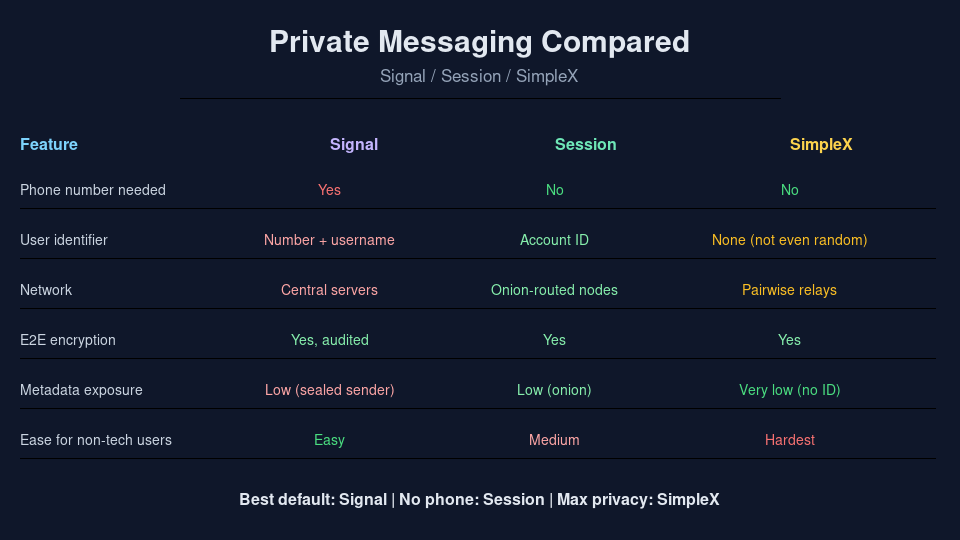
Comparison table of the Signal, Session and SimpleX private messengers

If you’re trying to move away from WhatsApp or Telegram, three names come up again and again: Signal, Session, and SimpleX. They all claim to be private, end-to-end encrypted messaging apps, and they’re all open source.

The content encryption is genuinely good in all three. Where they really differ — and it’s a much more important difference — is metadata: who you talk to, when, and how often. That’s the thing each of them handles completely differently.

I’ve used all three, and here’s my honest take on what each one actually gets you — and what it costs you.

The Quick Overview

  • Signal — The best default for almost everyone. Centralised, run by a US non-profit, requires a phone number to register (usernames hide it from contacts, not from Signal).
  • Session — Decentralised, no phone number at all, routes messages through an onion network of community-run nodes. You get a permanent Session ID instead of a number.
  • SimpleX — The most radical: it has no user identifier at all — not even a random ID. You connect through one-time invitation links instead of a username or number.

Signal — The Practical Default

Signal is the one your contacts are most likely to already use, and for most people that single fact is decisive. An encrypted messenger nobody you know has installed protects nothing — it just sits on your phone looking smug.

It’s run by the Signal Foundation, a non-profit. The protocol is the double-ratchet design that WhatsApp, Google Messages and Facebook Messenger all licensed, and it’s been independently audited.

What Signal does well

  • E2EE by default — Every chat and call is encrypted end to end, no setting to hunt for. Group chats, voice calls, video calls, linked devices.
  • Audited, battle-tested — The Signal Protocol is the industry reference for forward secrecy and break-in recovery.
  • Minimal metadata — Sealed sender hides who sent a message from Signal’s own servers. Signal’s published transparency reports show it retains almost nothing: registration date and last connection time.
  • Easy for non-technical people — Install, verify your number, done. Your mum can use it.

Where Signal falls short

  • Phone number required — You still need one to register. Usernames (added in 2024) hide the number from the people you chat with, but not from Signal itself. Your account is tied to a number, and a number is a strong real-world identifier.
  • Centralised — All traffic flows through Signal’s servers, run by a US non-profit subject to US legal process. They keep little, but they’re a central point of control.

Session — Decentralised, No Phone Number

Session started as a fork of Signal that removed the phone number entirely. Instead of a number, you get a permanent Session ID — a 66-character public key. No phone number, no email, nothing personal required to sign up.

Traffic is onion-routed through the Session Network, a decentralised set of nodes run by a global community. No single node sees both ends of a conversation, and offline messages are buffered until you fetch them.

What Session does well

  • No phone number, no email — You can create an account with zero personal information. This is the one to pick when registering a phone number is impossible or unsafe.
  • Decentralised — Onion routing over many community nodes makes it far harder for any operator to see your social graph or link your IP address to your messages.
  • Familiar feel — It looks and works like a conventional messenger, so the learning curve is gentler than SimpleX.

Where Session falls short

  • No forward secrecy (yet) — Session removed perfect forward secrecy back in 2021. If a device is compromised, past messages under the same Session ID can be decrypted. A V2 protocol that restores PFS and adds post-quantum protection was announced in December 2025, but it’s still being designed.
  • Permanent ID — Your Session ID is stable across every conversation. It’s not linked to your legal identity, but once anything ties that ID to you, it retroactively ties everything it ever touched.
  • Smaller network — Fewer users, fewer contacts already on it, and some reported reliability quirks with group delivery and device sync.

SimpleX — No Identifier At All

SimpleX takes the most aggressive position in private messaging right now: it has no user identifiers whatsoever — not a phone number, not a username, not even a random account ID. It describes itself as “the first network without user IDs”.

Instead of a lookup-by-identifier, you connect to people through one-time invitation links you exchange out of band. Every contact and group lives on your device, not on a server’s database. Messages look like random noise to the relays that briefly hold them.

What SimpleX does well

  • Strongest metadata story — There’s no account to subpoena, no identifier appearing in two places, no social graph accumulating on a server. Whoever you talk to can’t be correlated.
  • Everyone runs the network — No single entity controls it. Anyone can run a SimpleX server, and the protocol passes through relays you choose.
  • Solid encryption — Double-ratchet end-to-end encryption with forward secrecy, plus private message routing on by default since v6.0. The protocol design was independently reviewed by Trail of Bits in 2024.

Where SimpleX falls short

  • Friction — No identifier means nobody can find you by username. Every new connection means exchanging a one-time link through some other channel — which is also the moment you might leak the very association you were protecting.
  • Harder recovery — With no server-side identity to restore from, moving devices and recovering an account is more involved than a phone-number account.
  • Young and smaller — It’s the newest of the three, the ecosystem is younger, and the user base is far smaller. Less battle-tested than Signal.

Which One Should You Pick?

  • Almost everyone: Signal. The network effect is the security property — an encrypted messenger nobody you know uses protects nothing. Turn on a username so you stop handing out your number.
  • Can’t register a phone number: Session. It’s the most usable option that requires nothing personal at signup.
  • Journalists, sources, sensitive contact relationships: SimpleX as a second messenger, alongside Signal for everyday use. Use it specifically when the fact that two people are talking is itself the sensitive part.

Whichever you pick, remember the half of the picture most people ignore: content encryption is only half the story. Your network and your habits are the other half.

Further Reading

Check out the Signal directory listing on The Web Is Free for more details.

Download Session at getsession.org and SimpleX at simplex.chat — both free, no phone number required.

Related Articles

What do you think? Have you made the switch from WhatsApp or Telegram, and which of these did you land on?
Andrea
Best Open Source Security Tools for 2026

A roundup of the best open-source security tools worth running in 2026 — from SIEM and vulnerability scanning to endpoint visibility and incident response.

If you’re running any kind of infrastructure in 2026 — whether it’s a homelab, a small business setup, or a production environment — security isn’t optional. But you don’t need to spend a fortune on commercial licences to protect yourself. Some of the best security tools out there are open source, community-backed, and genuinely enterprise-grade.

I’ve been keeping an eye on the security tooling landscape this year, and a few names keep coming up across the board — from TuxCare’s roundup to community discussions on r/selfhosted and various tech publications. Here are the ones that stand out.

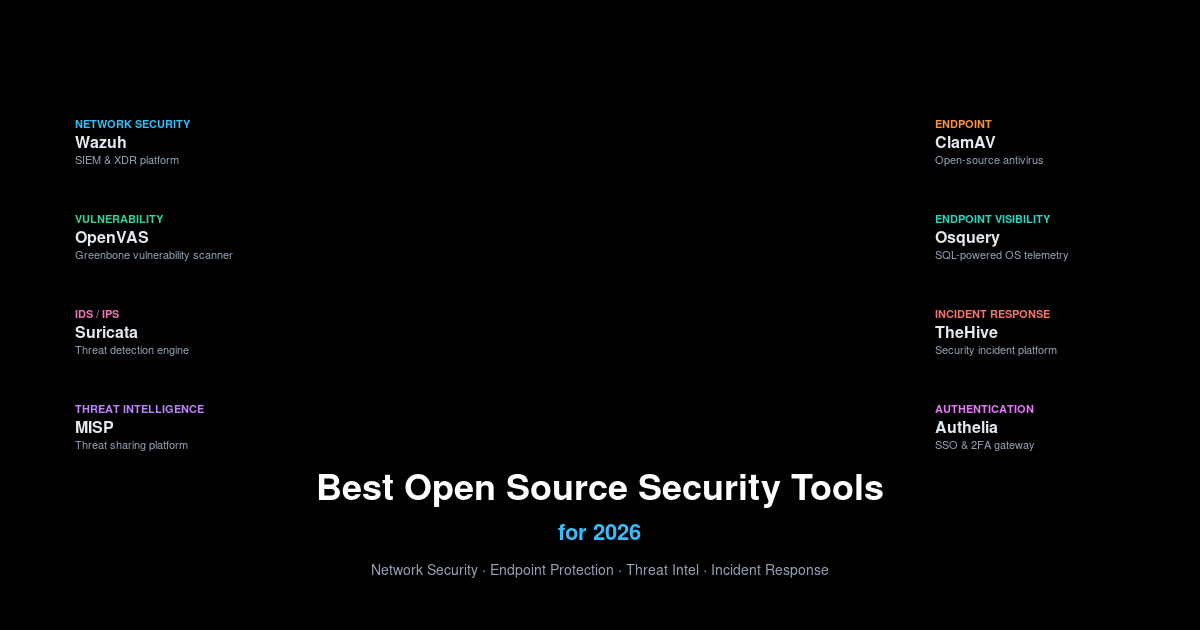
Wazuh — SIEM and XDR, Free

If you only install one security tool this year, make it Wazuh. It’s a unified SIEM (Security Information and Event Management) and XDR (Extended Detection and Response) platform that does log analysis, file integrity monitoring, vulnerability detection, and compliance auditing — all in one package.

It scales from a single Raspberry Pi to a full enterprise deployment. The agents run on Linux, Windows, macOS, and even Solaris. And unlike its commercial counterparts, there’s no per-agent licensing. You install the manager, deploy agents, and you get a central dashboard with real-time alerts.

I use it to monitor my own infrastructure and it catches things I’d never spot otherwise. The compliance reporting (GDPR, PCI DSS, HIPAA) is a nice bonus if you need it.

OpenVAS / Greenbone — Vulnerability Scanning

OpenVAS, now part of the Greenbone Vulnerability Management suite, is the go-to for open-source vulnerability scanning. It maintains a feed of over 100,000 network vulnerability tests (NVTs) and runs scheduled or on-demand scans against your network.

The web interface (Greenbone Security Assistant) gives you a clear view of your attack surface, sorted by severity. Pull it up once a week, patch the criticals, and sleep better at night.

It pairs nicely with Wazuh — Wazuh handles the real-time monitoring, OpenVAS handles the regular deep scans.

Suricata — IDS/IPS That Keeps Up

Suricata is a high-performance network IDS, IPS, and network security monitoring engine. It’s the modern alternative to Snort — it can handle multi-threading natively, supports GPU acceleration, and processes traffic at 10Gbps+ on decent hardware.

It uses the same rule sets as Snort (Emerging Threats, VRT) so you don’t lose anything in the switch. I switched from Snort to Suricata a couple of years ago and the performance difference was immediate. On the same hardware, Suricata handled three times the throughput without dropping packets.

ClamAV — Still the Antivirus Standard

Yes, antivirus on Linux is a debated topic. But if you’re running a mail server, a file-sharing service, or any system where users upload files, you need ClamAV. It catches Windows malware at the gateway before it ever reaches your Windows users.

It’s maintained by Cisco Talos, which means the signature updates are regular and reliable. Combined with FreshClam for automatic updates, it’s a set-and-forget security layer for your infrastructure.

Osquery — SQL for Your OS

Osquery lets you query your operating system like a database. Want to see every running process, every network connection, every USB device that’s ever been plugged in? Write a SQL query.

It’s not a SIEM replacement — it’s a telemetry layer that feeds into your monitoring stack. Pair it with Fleet or Kolide for multi-server management, and you’ve got real-time visibility into every endpoint without installing heavyweight agents.

Facebook built it, and it’s now a Linux Foundation project. The community is active, the schema is well-documented, and it works on Linux, macOS, Windows, and containers.

MISP — Threat Intelligence Sharing

MISP (Malware Information Sharing Platform) is the standard for threat intelligence sharing. If you’re part of a security team, or even just a well-organised homelabber who wants to keep up with IoCs (Indicators of Compromise), MISP gives you a structured way to store, share, and correlate threat data.

It integrates with Wazuh, Suricata, and pretty much everything else. The community feeds (CIRCL, VirusTotal, AlienVault OTX) keep the data flowing in automatically. You don’t need a full SOC to benefit from it.

TheHive — Incident Response for the Rest of Us

TheHive is an incident response platform designed for SOCs, but it works just as well for a solo admin. It lets you track cases, link them to alerts from Wazuh or MISP, and collaborate on investigations.

It uses a case management model that’s intuitive even if you’ve never worked in a SOC. Alert comes in, you create a case, assign tasks, attach observables, and run analysis. It keeps everything organised when things go wrong — and when things are calm, it gives you a nice dashboard showing that nothing’s on fire.

Nmap — The Old Reliable

Nmap is older than most security tools on this list, and it’s still indispensable. Network discovery, port scanning, OS fingerprinting, service detection — it’s the swiss army knife of network security.

Most of the other tools here integrate with Nmap’s output somehow. Zenmap gives it a GUI, but honestly, the command line is where it shines. I use it daily for quick checks, and every couple of months I run a full scan of my network to see what’s changed.

Which One Should You Pick?

If you’re starting from scratch: Wazuh gives you the most bang for your effort. Add OpenVAS for scheduled vulnerability scans, Suricata at your network perimeter, and ClamAV on anything that handles file uploads. That’s a solid stack that covers detection, scanning, and prevention without spending a penny on licences.

If you’re on a budget (and let’s be honest, who isn’t?), the combination of Wazuh + Suricata + MISP + TheHive gives you a complete security operations stack that competes with commercial offerings costing tens of thousands a year.

What do you think? Running any of these — or something I’ve missed? I’d love to hear about your setup.

Related Articles

Andrea

Jellyfin vs Plex vs Emby — free vs paid media server

If you’ve got a collection of movies, TV shows, or music sitting on a hard drive, you’ve probably thought about setting up a media server. The big three names that come up are Jellyfin, Plex, and Emby. They all do roughly the same thing — organise your media and stream it to your devices — but they go about it in very different ways.

I’ve used all three over the years, and here’s my honest take on where each one shines and where they fall short.

The Quick Overview

  • Jellyfin — Fully free and open source. No subscriptions, no paid tiers, no accounts required. Forked from Emby in 2018 when Emby went proprietary.
  • Plex — The most polished and user-friendly option. Free for local streaming, but remote access and advanced features need a Plex Pass subscription (from £4.99/month or a lifetime pass).
  • Emby — The middle ground. Open-source core with a commercial Premiere tier for hardware transcoding, DVR, and mobile apps. Premiere starts at $4.99/month or a lifetime licence.

Jellyfin — The Free Open-Source Option

Jellyfin is the media server you run when you want everything open source. It started as a fork of Emby back in 2018, when the Emby team decided to close-source parts of their project, and it’s been thriving ever since.

There’s no company behind Jellyfin — it’s built entirely by volunteers. That means no one trying to upsell you, no data collection, no account required. You download the server, run it, and point your browser at it. That’s it.

What Jellyfin does well

  • Absolutely no cost — Every feature is free. Hardware transcoding, remote access, downloads, all of it.
  • Privacy focused — No telemetry, no analytics, no account needed.
  • Live TV and DVR — Works with any standard TV tuner (HDHomeRun, M3U, etc.).
  • SyncPlay — Watch content together with friends and family remotely, synchronised playback.
  • Cross-platform clients — Web, Android, iOS, Roku, Kodi, and more.

Where Jellyfin falls short

  • Polish — The UI is functional but doesn’t feel as slick as Plex out of the box. You can theme it, but it takes effort.
  • Metadata — It pulls metadata well, but not quite as reliably as Plex. You may need to fix the odd match.
  • Setup — You need to be comfortable with a bit of configuration. It’s not difficult, but Plex is more beginner-friendly.

Plex — The Polished Commercial Choice

Plex is what most people think of when they hear “media server”. It’s the most polished, the easiest to set up, and the one your non-technical friends can use without hand-holding.

Plex Inc. runs it as a business, which means the free tier is limited. Local streaming is free. Remote streaming, hardware transcoding, downloads, and features like Skip Intro all require a subscription. There are two paid tiers: Remote Watch Pass (£2.99/month) for basic remote access, and Plex Pass (£4.99/month or lifetime) for everything.

What Plex does well

  • Ease of setup — Install, point at your media folders, and it mostly just works. The metadata matching is stellar.
  • Client apps — Plex has apps on everything. Smart TVs, game consoles, streaming sticks, phones — if it has a screen, there’s probably a Plex app.
  • Plexamp — A genuinely excellent music player for your personal music collection. Worth mentioning on its own.
  • Free ad-supported content — Plex bundles free movies and live TV channels (ad-supported), which is nice for casual browsing.
  • User management — Granular control over who accesses what, with managed accounts for kids.

Where Plex falls short

  • Cost — Hardware transcoding and remote streaming are locked behind subscriptions. The lifetime pass is a one-time cost, but it’s not cheap.
  • Account required — You need a Plex account to use it. Plex’s servers handle authentication and discovery, even for local streaming.
  • Data collection — Plex collects usage data. They’ve improved their privacy policy, but it’s not a zero-telemetry system.
  • Proprietary — The core is closed source. You’re dependent on Plex Inc.’s direction for features and fixes.

Emby — The In-Between Option

Emby started as a fully open-source project called Media Browser, then rebranded and gradually moved toward a commercial model. It sits somewhere between Jellyfin and Plex — more open than Plex, but with a paid tier for premium features.

The core server is open source, but features like hardware transcoding, DVR, mobile app access, and cover art plugins require an Emby Premiere subscription ($4.99/month, or a lifetime licence).

What Emby does well

  • Good balance — You get a lot for free (local streaming, web interface, basic apps), and Premiere unlocks genuinely useful features.
  • Hardware transcoding — Premiere includes excellent GPU-accelerated transcoding, using your Intel QuickSync, NVIDIA NVENC, or AMD hardware.
  • Emby Theater — A dedicated TV client that works well on Windows, Xbox, and PlayStation.
  • Live TV and DVR — Robust with guide data, series recording, and commercial skipping.
  • Plugin system — Good selection of community plugins for extra functionality.

Where Emby falls short

  • Split community — The 2018 fork that created Jellyfin split the user base and developer attention.
  • Mobile apps locked — Without Premiere, the Android and iOS apps can only play for a limited time before asking you to buy.
  • Smaller ecosystem — Fewer clients and third-party integrations than Plex, and less community momentum than Jellyfin.
  • Licensing confusion — The line between what’s free and what’s Premiere isn’t always clear on their website.

The Bottom Line

If you want free, open source, and full control — go with Jellyfin. It does everything the others do, and you don’t have to worry about subscriptions or data collection. It’s what I run personally.

If you want the most polished experience and you’re happy to pay for it — go with Plex. The setup is effortless, the apps are everywhere, and the lifetime pass is good value if you plan to use it for years.

If you want a middle ground with a strong open-source core and don’t mind paying for premium features — Emby is worth a look. Its hardware transcoding is excellent, and the Theater app is the best TV experience of the three.

Further Reading

Check out the Jellyfin directory listing on The Web Is Free for more details.

Download it at jellyfin.org — free, no subscriptions, no account required.

Related Articles

Hope this helps you decide!
Andrea

GIMP vs Krita — which image editor is right for you?

So you need a free image editor — you’ve heard of GIMP and Krita, both free and open source, both powerful, but you’re not sure which one to install. I’ve used both extensively and the answer really depends on what you want to do. Let me break it down.

What Each Tool Is Actually Made For

This is the key difference most people miss. GIMP and Krita are both image editors, but they were built for completely different jobs.

GIMP (GNU Image Manipulation Program) is a Photoshop replacement — it’s built for photo retouching, image composition, and graphic design. You open a photo, tweak the colours, remove a background, resize it, add some text, export. It handles raster graphics, layers, masks, and all the standard image manipulation tasks you’d expect.

Krita is a digital painting studio. It’s built from the ground up for illustrators, concept artists, and comic creators. The brush engine is its superpower — it mimics real media (oils, watercolours, pastels) better than anything else in the open source world. Yes, it can also edit photos, but that’s not its strength.

GIMP’s Strengths

  • Photo editing — colour correction, levels, curves, healing tool, clone stamp. It’s excellent for touching up real photographs.
  • Batch processing — you can automate repetitive tasks with scripts (Script-Fu, Python-Fu). Great for processing hundreds of images.
  • File format support — GIMP opens almost anything: PSD, PNG, JPEG, TIFF, BMP, and dozens of obscure formats. The RAW import via UFRaw is solid.
  • Plugins ecosystem — there are hundreds of community plugins for everything from noise reduction to web optimisation.
  • Lightweight — it runs on old hardware without complaining. I’ve used GIMP on a 10-year-old laptop with no issues.

Krita’s Strengths

  • Brush engine — it’s genuinely remarkable. The brush tips, textures, colour smudging, and blending feel natural. If you’re doing digital art, you’ll notice the difference immediately.
  • Stabilisation — built-in stroke smoothing that makes your lines look clean and confident. A lifesaver for anyone using a drawing tablet.
  • Animation tools — Krita has a full frame-by-frame animation system. You can create flipbook-style animations right inside the interface.
  • Wrap-around mode — perfect for creating seamless textures and tileable patterns. You paint across the edge and it wraps around.
  • HDR painting — support for high dynamic range images and 16-bit/32-bit colour channels, essential for professional illustration work.

Which Should You Choose?

Here’s the short version:

Choose GIMP if: you’re editing photos, designing graphics for the web, making social media images, resizing and converting batches of files, or doing any kind of image manipulation where the goal is to modify an existing image rather than create something from scratch.

Choose Krita if: you’re drawing, painting, making comics, doing concept art, creating animations, or working on any project where you start with a blank canvas and build an image from nothing.

If you really want both, that’s fine too — they coexist perfectly on the same system and there’s no conflict between them. I have both installed and use GIMP for quick photo edits and Krita when I’m sketching out ideas.

The Bottom Line

Don’t overthink this one. GIMP and Krita serve different purposes and both are excellent at what they do. The “versus” in the title is a bit misleading — they’re not really competitors. If you need a photo editor, get GIMP. If you need a painting tool, get Krita. If you need both, get both. They’re free, after all.

Looking for other open source creative tools? Check out our directory listings for GIMP and Krita, or browse the full Creative & Multimedia category for more free alternatives.

Give them both a try!

Related Articles

Testing Paperclip: What I Learned

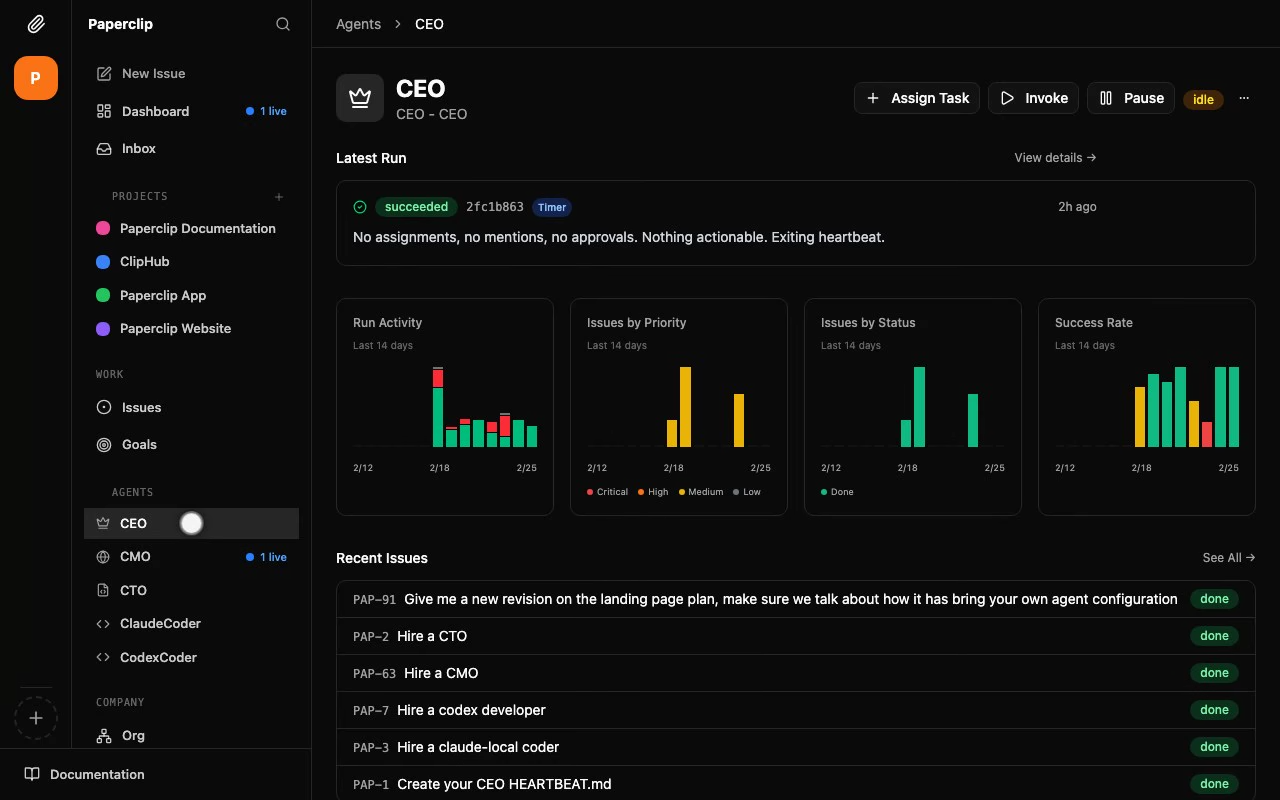
Paperclip dashboard showing agent orchestration UI

Paperclip recently caught my attention as it allows you to orchestrate teams of specialised AI agents through a beautiful self-hosted web UI, so I had to give it a try.

What Works Well

The concept is solid: specialized agents for different tasks, all tracked through a ticketing system. The UI looks clean and modern. Navigation feels intuitive. Watching my “CEO” agent hire a UI/UX designer, then a CTO, all coordinating through the interface, was entertaining.

For users who want AI agent orchestration without building everything from scratch, Paperclip provides a polished starting point.

Where It Fell Short for Me

I deployed Paperclip using Docker Compose (my preferred approach for managing services). The setup required some debugging—it always does, of course. Permissions, configs of some utilities not where I was expecting to find them. Probably my fault for trying to optimise too early but, really, I was trying to learn. Nothing insurmountable, but it added complexity not needed at the beginning of a project.

More importantly, I noticed my coding credits depleting steadily while Paperclip was running… with nothing actually happening. My team consisted of a CEO and a designer, happily chatting away, checking tickets in and out, burning credits through heartbeat checks and status polls. The UI showed “agents working” but no real output was being produced.

The pretty interface, it turns out, hides the mechanics. For someone who lives in logs and CLI output, this opacity was a little confusing.

The Simpler Alternative

I stepped back and asked: what am I actually trying to achieve here? Agent orchestration. I then investigated how OpenClaw could solve the same problem and realised I could probably achieve most of what I wanted without the extra software and overhead. Like I said, the UI/dashboard is nice but I can’t just sit there and watch the credits slowly disappear.

If you’re already running OpenClaw, n8n, or similar tools? You’re probably already 80% there with infrastructure you understand end-to-end.

What Paperclip Does Differently

Here’s where Paperclip differs from other harnesses. It’s an orchestrator of harnesses, therefore it can orchestrate multiple different AI harnesses as a single team. As Paperclip puts it “if OpenClaw is an employee, Paperclip is the company”. The employees don’t need to be all of the same type, you could have Claude Code, an OpenClaw and an Hermes Agent all working as part of the same team/organisation.

Paperclip on GitHub — check out the project if you’re curious.

All working together, checking out tickets, assigning work to each other. Paperclip lets you mix and match.

For me, that wasn’t the missing piece. But if you’re building a multi-agent system where different agents need different strengths, it’s worth considering.

If You Want to Try It

The concept shows promise. The project has real potential. If you’re curious about AI agent orchestration and want something with a polished UI, give it a spin.

Learn from my mistakes:

  • When deploying with Docker, pin a stable release, not latest
  • Watch your credit usage closely until you understand what it’s doing (maybe set some alerts if you can)
  • Start with a small project to see results quickly
  • Understand that there is some complexity going on which is nicely hidden under the UI

If you, on the other hand, are already using some alternative AI harness and all you want is an easier way to manage an AI team/agents, look more deeply into what your software of choice already supports.

Hope it helps!

Andrea

Related Articles

Drush intro – Drupal

Drush is a command-line shell interface for Drupal. It lets you do almost anything you would do through the Drupal admin interface — enabling modules, clearing caches, running cron, backing up the site — all from the terminal.

Installation

The preferred way to install Drush is via the official PEAR channel, but it can also be installed manually on a shared server.

Backup and restore

archive-dump backs up the codebase, files, and database into a single file:

drush archive-dump
drush archive-restore

Common commands

drush pm-download 
drush pm-enable 
drush pm-disable 
drush cc all
drush cron
drush sql-dump
drush uli

Enjoy!

XBMC 11 (aka Eden) stable release download available

XBMC Media Center (formerly Xbox Media Center) is a free and open source cross-platform media centre and HTPC application. I have been using it for just a few months but I never tried any media centre as good and configurable as this one.

Version 11, codenamed “Eden”, was a significant release. It introduced a new skin engine that made it easier for designers to create custom interfaces. Library management was overhauled — scraping metadata for movies and TV shows became more accurate and faster. Hardware acceleration was improved, making HD playback smoother on a wider range of hardware.

Eden also added support for more audio formats, better UPnP streaming, and an improved add-on system. The PVR (live TV) integration, while still marked as a beta feature, was a promising addition for those looking to replace their set-top box entirely.

If you have a home theatre PC or even just a computer connected to your TV, XBMC turns it into a proper media centre — movies, TV shows, music, pictures, all with a beautiful interface designed for a remote control. It supports almost every file format you can throw at it and runs on Windows, Mac OS X, Linux, and even the original Xbox.

Download your free version and give it a try!

Download the free version and give it a try!

Give it a try!

Free 3GB SpiderOak account – (Dropbox alternative)

SpidearOak gives you 2GB to start with. If you want to start with 3GB instead use this link.
Keep reading if you want to find out more.

So, first of all, SpiderOak is a web-based file hosting service “similar” to Dropbox.
You don’t know what Dropbox is? oh well :-). You can have a look at the Dropbox intro video or keep reading..
Anyway, I’ve used Dropbox for a couple of years, until last month.
I was using it to share some files among different computers/phone and I must say that it has always worked well for me.
I always look for software that do things better but, in this case, I was even more encouraged to find an alternative when, last July, Dropbox made its license more restrictive.
As you can see from the last paragraph in the Wikipedia Dropbox criticism “In early July 2011 Dropbox revised their Terms of Service several times after first including language that appeared to give them an unrevokable license to any material uploaded. They subsequently clarified that language in response to the maelstrom of criticism and concern that resulted from artists and corporate users with confidential data.”
The bottom line here is. Dropbox is still a good service but using it for confidential data MIGHT (I repeat myself, MIGHT) be risky.

The Dropbox staff can get access to your data. No one is saying that they do (on a regular basis at least).
So, SpiderOak, is a good and safer alternative to Dropbox.
Safer because SpiderOak based their entire architecture on a zero-knowledge policy and encryption.
I’ve already installed it on three Ubuntu boxes and my Android phone and I can guarantee that is fast, easy to use and has a nice GUI.
SpiderOak-GUI
As you can see from the screenshot, it can be used to backup, synchronize and share data.

Another great thing is that you can get up to 50GB of space for free (with a refer-a-friend program).

There are two huge differences between the SpiderOak and Dropbox refer-a-friend program:
1) SpiderOak gives you 1GB per each friend (not 250MB);
2) SpiderOak gives BOTH of you that extra GB (not the referrer only like Dropbox).

So, for example, this is my SpiderOak referral link. If you subscribe to their service trough that link you get 1GB extra as well as me. That makes you start from 3GB rather than 2 only…

It’s good for me, it’s good for you. I like it that way… :-D
It’s also cross-platform so you can enjoy it on Linux, Mac, Windows, IOS and Android.
You can add as many devices as you want.

Under Ubuntu Lucid (and probably others similar as well), if the “Launch SpiderOak at Login” option does not work for you add it manually:
Preferences -> Startup applications -> Add .
Name: SpiderOak (or whatever you want)
Command: /usr/bin/SpiderOak (which is the result of “which SpiderOak”)
Comment: Online backup/sync solution (or whatever you want)

Once again. Here is the link to open a 3GB SpiderOak account.
That’s all for now. Hope you enjoy your new free sharing service.

Hope it helps!

IDE Netbeans 7.0 is out: PHP, Java SE/EE and C/C++

Netbeans 7 is out. I have been using it for PHP, at work as well as at home, for almost two years and I have to say it has become by far my favourite PHP IDE.

The Netbeans IDE started in 1996 for Java. PHP support came with version 6.5 in late 2008. Since then, every release has improved significantly.

What I like about it is that it just works out of the box — the PHP code completion, the debugger integration with Xdebug, the SVN/Git support built right in. You don’t need to piece together half a dozen plugins to get a productive environment.

One of my favourite features is the ability to search across files with Alt+Shift+O. It’s one of those things you don’t appreciate until you try going back to an IDE that doesn’t have it.

Curious about it? Download the version you need from the Netbeans site and give it a try.

Enjoy it!

Wireless Android/pc file transfer with OnAir

I recently bought a new HTC Wildfire and was looking for a way to transfer files between my computer and the phone without needing a USB cable all the time.

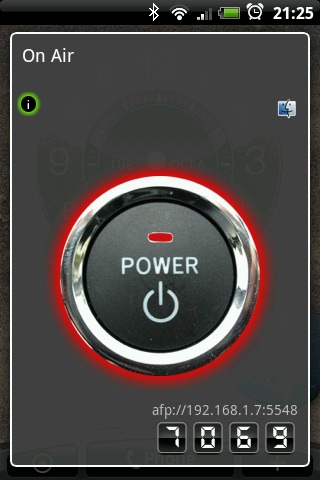
OnAir is an Android app that turns your phone into a wireless file server. You install it, start the service, and browse to the IP and port it shows you — from there you can upload, download, and manage files over WiFi.

OnAir Android app screenshot

The setup is really simple:

  1. Install OnAir from the Android Market
  2. Open the app and start the server
  3. Note the IP address and port shown on screen
  4. Open your browser on your PC and go to that address

You will see a simple web interface with your phone’s SD card contents. You can upload files from your PC to the phone, download files from the phone to your PC, or delete files you no longer need. It supports multiple file selection and works with any browser.

It is not as fast as USB for large transfers — WiFi is slower than a cable — but for quickly moving a few files across the room it is very convenient. No cables, no drivers, no hassle. Perfect for when you are on the sofa and just want to transfer a PDF or a photo.

Enjoy! :-)