Proxmox – Passthrough card/device to openVz container

I wanted to passthrough a dual tuner TV card (Hauppauge WinTV Nova-T-500) to an openVz container in order to use tvHeadEnd. The procedure should be the same for any PCI device.

First, identify the device you want to passthrough:

tree /dev/dvb/

This shows the device nodes under /dev/dvb/. Then mount the host device into the container by editing the container configuration file (/etc/vz/conf/CT_ID.conf) and adding:

DEVICES="c:212:*:rw"

Replace 212 with the major device number of your device (visible with ls -l /dev/dvb/…). After a restart of the container, the device should be accessible from within it.

You can verify with:

ls -l /dev/dvb/

Enjoy!

Use Remmina to satisfy all your remote connection needs

Remmina is a remote desktop client that supports multiple network protocols — RDP, VNC, NX, XDMCP and SSH — in a nice and very user-friendly GUI.

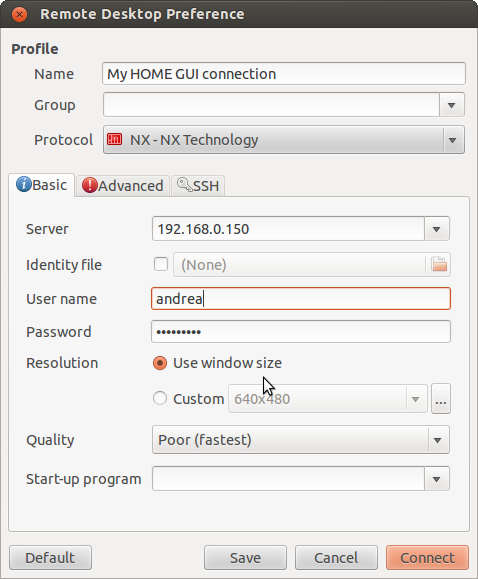
In its basic usage, you only need to know the protocol, the server address, username and password.

Remmina basic connection tab

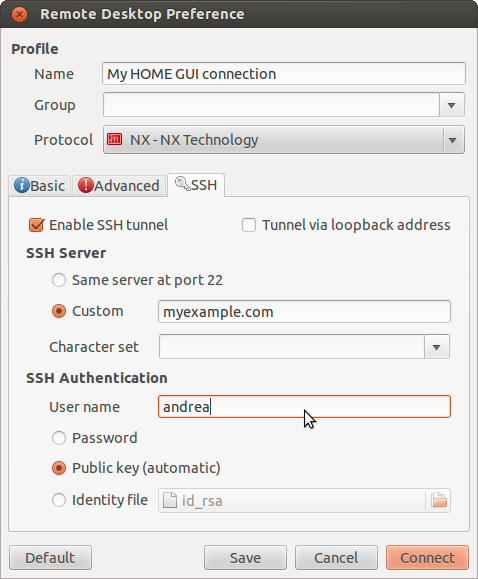
This works perfectly if you are in the same LAN. For connections over the internet, Remmina can tunnel through SSH, configured in the SSH tab:

Remmina SSH tunnel settings

It supports RDP for Windows machines, VNC for Linux desktops, and NX for remote sessions. All saved in a single, clean interface.

Enjoy!

Test email from command line

When you set up email forwarding or configure a new MTA, you will want to confirm it is working before relying on it for alerts. A quick test is all you need.

Send a test message

mail -s Test myEmail@gmail.com

If the mail command is not available, install it with apt-get install mailutils. Then check your inbox.

If it does not arrive

Run mailq to see if the message is stuck in the queue. The mail log at /var/log/mail.log will also show the delivery attempt and any errors.

Enjoy!

PHP: remove duplicate elements from a multi-dimensional array

This post is over 3 years old, so please keep in mind that some of its content might not be relevant anymore.

PHP’s array_unique() is great for removing duplicates from a flat array, but it chokes on multi-dimensional arrays. If you have nested data and need to remove duplicates, here’s a clean one-liner that does the job.

The trick: serialize, unique, unserialize

The idea is straightforward: flatten the array temporarily by serialising each element, let array_unique() do its thing on the flat list, then unserialise everything back to its original structure.

$uniqueArray = array_map("unserialize", array_unique(array_map("serialize", $array)));

Working from the inside out:

  • array_map("serialize", $array) — turns each nested element into a string representation
  • array_unique() — removes duplicate strings (which means duplicate nested structures)
  • array_map("unserialize", ...) — restores each string back to its original PHP value

The result is a multi-dimensional array with all duplicate entries removed, regardless of how deep the nesting goes. You keep the original structure and no external libraries needed.

Hope it helps!

Ban offending IP addresses – fail2ban

If you run a public SSH server, you will see failed login attempts in your logs constantly. Fail2ban monitors those logs and adds firewall rules to block offending IPs.

Here is what you see in /var/log/auth.log from a machine that has been online for a few days:

Nov 20 06:30:43 serverName sshd[63467]: Address 91.191.166.95 maps to 91-191-166-95.netdirekt.com.tr
Nov 20 00:47:45 serverName sshd[24617]: Invalid user fluffy from 221.179.34.37
Nov 20 00:47:55 serverName sshd[24617]: Failed password for invalid user fluffy from 221.179.34.37

Install and configure:

apt-get install fail2ban
cp /etc/fail2ban/jail.conf /etc/fail2ban/jail.local

Edit the .local file. A typical SSH jail:

[DEFAULT]
ignoreip = 127.0.0.1 192.168.1.0/24
bantime = 600
maxretry = 3

[ssh]
enabled = true

Check banned IPs:

iptables -L
iptables -L --line-numbers

Remove a specific ban:

iptables -D fail2ban-ssh 

On modern systems, use fail2ban-client for an easier overview:

sudo fail2ban-client status sshd

Set it up once and it will quietly block thousands of attempts without you thinking about it.

Hope it helps!

Send system emails using gmail as smtp server

I wrote before about sending system emails using sendmail as a smarthost. Here is an alternative approach using Gmail SMTP servers — often simpler to set up for home servers and small VPS.

The software that makes this easy is called ssmtp. It is a lightweight MTA that forwards mail to a configured SMTP relay, perfect for this use case.

Installation and configuration

Install ssmtp:

apt-get install ssmtp

Edit /etc/ssmtp/ssmtp.conf:

root=myAccount@gmail.com
mailhub=smtp.gmail.com:587
hostname=myHostname.com
UseSTARTTLS=YES
AuthUser=myAccount
AuthPass=myPassword
FromLineOverride=YES

And set your address in /etc/ssmtp/revaliases:

root:myAccount@gmail.com:smtp.gmail.com:587

That is it. From now on, system emails are delivered through your Gmail account. If you use two-factor authentication, generate an app-specific password instead of using your main password.

Enjoy!

How to shred/wipe disks/partitions

When you delete a file normally, the data stays on the disk — the filesystem just marks the space as available. The data can be recovered with the right tools. If you need to make sure it is really gone, you can overwrite it securely.

shred -vzf -n 5 /dev/sdb

The -v flag shows progress, -z adds a final overwrite with zeros to hide the fact that shredding took place, -n specifies the number of passes (5 in this example), and the device is the disk or partition you want to wipe.

Be careful with this command — there is no undo. Double-check the device name before running it.

Shredding a single file

If you only need to destroy a specific file rather than an entire disk, use shred on a file directly:

shred -vzu sensitive-file.pdf

The -u flag tells shred to delete the file after overwriting it. Without -u the file remains in place but with its content overwritten.

Wiping with dd for more control

If you want to see exactly what is being written and you know the disk size, dd gives you more control:

sudo dd if=/dev/urandom of=/dev/sdb bs=4096 status=progress

This writes random data in 4K blocks and shows a progress indicator. Replace urandom with zero (if=/dev/zero) for a faster but less thorough wipe. The trade-off is that a single zero pass is detectable — someone with specialised equipment can still read the residual magnetic signature.

Verifying the wipe

After wiping a disk, you can verify that no readable data remains:

sudo xxd /dev/sdb | head

If the output shows consistent patterns (all zeros or all random bytes), the wipe was successful. If you see fragments of old filesystem structures, you might need another pass.

Note on SSDs

Shred relies on overwriting the same physical sectors multiple times. On modern SSDs, wear-levelling and TRIM make this unreliable — the drive may remap sectors and leave old data in place. For SSDs, use the ATA Secure Erase command built into the drive firmware instead. Most Linux distributions include the hdparm or nvme-cli tools for this:

sudo hdparm --user-master u --security-set-pass p /dev/sdb
sudo hdparm --user-master u --security-erase p /dev/sdb

Or for NVMe drives:

sudo nvme format /dev/nvme0n1 -s1

The best defence against needing to wipe a disk securely is full-disk encryption. If the drive was encrypted from day one, a single pass of zeros is enough to make the data unrecoverable — the encryption keys are gone, and the rest is ciphertext.

Enjoy!
Root HTC Wildfire (Android 2.2.1), install Cyanogenmod 7 and fix GPS

I have been using my HTC Wildfire for quite some time now. It is not a bad phone but it is somewhat limited, mainly in memory and speed. Plus, I really wanted to experiment and see what a custom ROM could do.

From my research, SuperOneClick is the most popular tool for rooting the Wildfire. You can find it on the XDA Developers forum — it makes the process very straightforward.

Once rooted, install ROM Manager from the Market and flash a custom recovery. Then download CyanogenMod 7, copy it to your SD card, boot into recovery, and install the zip.

1. Root with SuperOneClick
2. Install ROM Manager
3. Flash ClockworkMod recovery
4. Download CyanogenMod 7
5. Copy to SD card
6. Boot into recovery (Volume Down + Power)
7. Install zip from SD card
8. Reboot

After installing CyanogenMod, if your GPS is not working (a known issue), flash the appropriate GPS fix for your region from the XDA forums.

The difference in performance is night and day. The Wildfire becomes a much more usable device. Give it a try!

Formatting a partition from command line

When you need to format a partition from the command line, a few commands are all you need. Here’s the typical workflow.

First, create the filesystem:

mkfs.ext4 /dev/sdxy

If you want to reserve less space for the root user:

tune2fs -m 0 /dev/sdxy

Check the filesystem for errors before mounting:

fsck.ext4 -fy /dev/sdxy

Then mount it where you need it:

mount /dev/sdxy /wherever/I/want

Replace /dev/sdxy with your actual partition and /wherever/I/want with your mount point.

Enjoy!

Logical Volume Management basics

I have explained how to activate an LVM logical volume before, but never talked much about LVM itself. Here is a brief introduction.

I have been playing with LVM for about a couple of years now and I must say I have found it very practical, even for managing simple home desktops and servers. The main feature I use is the ability to resize volumes online, but LVM is useful for other things too: creating snapshots, combining multiple disks into a single volume group, and adding redundancy through mirroring.

Physical Volumes, Volume Groups, Logical Volumes

LVM works in three layers:

  • Physical Volume (PV) — a disk or partition that LVM can use. Initialised with pvcreate.
  • Volume Group (VG) — a pool of storage made from one or more physical volumes.
  • Logical Volume (LV) — a virtual partition carved out of a volume group. This is what you format and mount.

Start by preparing a partition (use fdisk to set the type to 8e — Linux LVM):

sudo pvcreate /dev/sdb1
sudo vgcreate my_volume_group /dev/sdb1
sudo lvcreate -L 10G -n my_volume my_volume_group

Now format and mount it:

sudo mkfs.ext4 /dev/my_volume_group/my_volume
sudo mount /dev/my_volume_group/my_volume /mnt

Resizing

Need more space? If you have free space in the volume group:

sudo lvextend -L +5G /dev/my_volume_group/my_volume
sudo resize2fs /dev/my_volume_group/my_volume

The filesystem is resized online — no unmounting required.

Snapshots

LVM snapshots let you take a point-in-time copy of a volume. Useful for backups:

sudo lvcreate -L 1G -s -n my_snapshot /dev/my_volume_group/my_volume

The snapshot starts small and grows as changes are made to the original volume. Remove it when no longer needed:

sudo lvremove /dev/my_volume_group/my_snapshot

Enjoy!