Mediawiki: disable account creation

When you install MediaWiki, new user registration is enabled by default. Anyone can create an account and start editing. That’s fine for a public wiki, but not always what you want — especially for a private or company wiki where you want to control who has access.

There’s no toggle for this in the settings UI, but it’s a single line in the config file.

Disable registration

Add this line to your LocalSettings.php file:

$wgGroupPermissions['*']['createaccount'] = false;

This tells MediaWiki to deny the createaccount permission to the * group (which means all users, including unauthenticated visitors).

Allow only certain users to create accounts

If you want only logged-in users to be able to create new accounts (for example, so existing users can invite others):

$wgGroupPermissions['*']['createaccount'] = false;
$wgGroupPermissions['user']['createaccount'] = true;

Or if you want only sysops (admins) to create accounts:

$wgGroupPermissions['*']['createaccount'] = false;
$wgGroupPermissions['sysop']['createaccount'] = true;

After making the change, clear the MediaWiki cache if needed (php maintenance/runJobs.php) and the login/register page will immediately reflect the new permissions.

Enjoy!

How to configure sendmail as a SMART HOST

Sometimes I need to test the email functionality of a PHP website on my local machine. The best and easiest way I found so far is using sendmail as a smart host.

A smart host is a piece of software that routes email to an intermediate mail server rather than directly to the recipient’s server. The only thing you need is the SMTP address of your internet service provider. For example, my ISP is Virgin Media and their SMTP server is smtp.virgin.net.

First of all you have to install sendmail. On Ubuntu:

sudo apt-get install sendmail

Then open your configuration file:

sudo vi /etc/mail/sendmail.mc

and append or modify the following line to define your ISP SMTP server:

define(`SMART_HOST',`smtp.virgin.net')

Remove the “dnl” word at the end if there is one. Now login as root and regenerate the sendmail config file:

m4 /etc/mail/sendmail.mc > /etc/mail/sendmail.cf

and restart sendmail:

service sendmail restart

Now your local machine should be able to send emails. The easiest way to test is from the PHP interactive shell:

php -a
mail('myemail@domain.com','TEST','WORKING?!?');

Enjoy… :-)

How to install “as many Operating Systems as you want” in one machine

Do you often have the need, or want the pleasure, to try a new operating system?
Do you prefer using a “real machine” rather than creating a virtual one (like VMware or Virtualbox for instance)?
Have you got a spare machine for this purpose?
Ok, if you responded “Yes” to all the above, please read on…

Some theory
A hard disk partition can be:
– primary;
– extended;
– logical.

Primary partition
A hard disk can be divided in no more than four primary partitions. Microsoft Windows requires to be installed in a primary partition in order to boot. In some older versions it even requires to be in the first partition as Wikipedia says: “In DOS and earlier versions of Microsoft Windows systems, the system partition was required to be the first partition. Windows operating systems must be located in a primary partition. Other operating systems do not have this peculiar requirement.”

Extended partition
Instead of creating four primary partitions one can be “sacrificed” to be an extended one. A hard disk may contain only one extended partition which can be subdivided into multiple logical partitions.
The only purpose of an extended partition is to contain logical partitions.

Logical partition
These can be used as normal partitions except for the fact that Windows cannot boot from them. Linux can… :-) Nice penguin!

Practice
So, this is the “secret”. You can use logical partitions for installing all Linux flavours that you like so much and can’t live without (SWAP and other OSs) and keep the primary partitions for the lovely Windows.
To start partitioning your hard drive you can use gParted which is the best tool I’ve ever found for this purpose (or any other partitioning tool you like). gParted is included in Ubuntu but I’m quite sure it can be installed in other distros as well.

Now you should be ready to have a look at my experiment:
GParted - multi Operating Systems
As you can see I created an extended partition in the first one (“/dev/sda1”) and I kept a primary partition for Windows Xp (“/dev/sda2”).
Inside the extended partition I’ve created six logical partitions for some linux flavours all functioning, plus a SWAP (“/dev/sda5”) partition and a DATA (“/dev/sda12”) partition used to share files among the OSs. I’ve choosen “fat32” since some Linux distributions don’t support NTFS out of the box.

After all of this, my little hard disk still has 9 GB free. What other operating system should I install? :-)
All operating systems are managed by a boot loader (Grub2) which gives me the possibility to choose which OS to start. Grub2 is shipped with many recent distributions like Ubuntu Lucid for example.

In the near future I might write a post on how to recover a lost grub which makes the computer unbootable.
Enjoy the freedom to try all the operating systems you are curious about.

How to ssh to a server without password

If you connect to a remote server regularly, typing your password every time gets old fast. Key-based authentication is the standard way around this — it is more secure and more convenient once set up.

Generate a key pair

On your local machine, run:

ssh-keygen -t rsa

This creates a 2048-bit RSA key pair in ~/.ssh/. The public key is saved as id_rsa.pub, the private key as id_rsa. Keep the private key safe — anyone who has it can log into any server that trusts the matching public key.

Copy the public key to the server

Copy the public key to the remote server and append it to the authorized keys file:

scp ~/.ssh/id_rsa.pub my_username@mySshServer:~/.ssh/id_rsa_local.pub
cd ~/.ssh/
cat id_rsa_local.pub >> authorized_keys2

Make sure the permissions are correct on the server (~/.ssh should be 700, authorized_keys2 should be 600). If the permissions are too loose, SSH will ignore the key and fall back to password authentication.

Connect using sftp

You can also connect using SFTP with the same key pair:

sftp://my_username@mySshServer/home/my_username

Using ssh-agent to avoid typing your passphrase

If you set a passphrase on your key (recommended), you will be prompted for it the first time you use the key each session. You can avoid this by adding the key to ssh-agent:

eval $(ssh-agent)
ssh-add ~/.ssh/id_rsa

Enter your passphrase once, and ssh-agent will remember it for the rest of your session. On most desktop Linux distributions, ssh-agent starts automatically when you log in.

Troubleshooting

If SSH still asks for a password, check these in order:

  • Server file permissions: ~/.ssh must be 700, authorized_keys must be 600
  • You appended the correct public key (compare with cat ~/.ssh/id_rsa.pub on your local machine)
  • The server’s /etc/ssh/sshd_config has PubkeyAuthentication set to yes
  • Check /var/log/auth.log on the server for specific error messages

Once it works, you can SSH into the server without being prompted for a password.

Enjoy!

How to create a simple WordPress Child Theme

A child theme lets you customise an existing WordPress theme without losing your changes when the parent theme updates. Every time the parent theme is updated, any files you edited directly get overwritten. A child theme avoids this.

Start by creating a folder and a style.css file that declares the parent theme:

/*
Theme Name:     My Twenty Ten Child
Theme URI:      https://www.opensourceisbetter.com/
Description:    Child theme for the Twenty Ten theme
Author:         Andrea
Template:       twentyten
*/

The Template line must match the folder name of the parent theme exactly. Activate the child theme from Appearance > Themes.

For the styles to work, create a functions.php file to enqueue the parent styles:

function my_theme_enqueue_styles() {
    wp_enqueue_style('parent-style', get_template_directory_uri() . '/style.css');
}
add_action('wp_enqueue_scripts', 'my_theme_enqueue_styles');

Now you can edit the child theme files freely. Add custom CSS to style.css, override template files by copying them from the parent theme, and add functionality through functions.php — all without touching the parent theme.

That is it!

Sharing Internet connection trough an ethernet card with Ubuntu

If you have more than one network card (wireless and ethernet, like in a normal laptop) you can share your Internet connection with another computer via the ethernet cable. “When should I need such a thing?” you say. I know, I know… let me explain. :-)

The other day I was working on a Linux laptop that doesn’t have an integrated wireless card and the USB one had not been recognised after a fresh install. I needed to install a package to make it work but had no Internet. Classic Linux chicken-and-egg problem, isn’t it? :-)

Here is how you do it. Go to System > Preferences > Network Connections, click on the “Wired” tab and add or edit an existing connection. In the IPv4 Settings tab, change the “Method” to “Shared to other computers”.

Network connections in Ubuntu Lucid

Editing network connection in Ubuntu Lucid

If the graphical tool is not available, you can also set this up from the command line:

sudo ifconfig eth0 10.42.0.1 netmask 255.255.255.0 up
sudo iptables -t nat -A POSTROUTING -o wlan0 -j MASQUERADE
sudo sh -c "echo 1 > /proc/sys/net/ipv4/ip_forward"

This gives the connected machine an IP in the 10.42.0.x range and forwards traffic through your wireless interface.

Enjoy sharing!

Virtualbox USB devices not working on Ubuntu Lucid

There is a known problem between Ubuntu Lucid as host OS and Virtualbox 3.2 when it comes to USB devices. Everything works fine except the USB controller — the devices show up greyed out in the guest OS.

If you have the same symptoms, it is likely a permission problem. Check that your user is a member of the “vboxusers” group.

You can do this through the GUI: System > Administration > “Users and Groups”. Click on “Manage Groups”, scroll down to “vboxusers” and check if your user is listed. If not, add it. :-)

You can also check from the command line:

groups $USER

If “vboxusers” is not in the output, add your user to the group with:

sudo usermod -aG vboxusers $USER

You will need to log out and back in for the group change to take effect. In some cases a full restart is required.

That is it.

Wireless Android/pc file transfer with OnAir

I recently bought a new HTC Wildfire and was looking for a way to transfer files between my computer and the phone without needing a USB cable all the time.

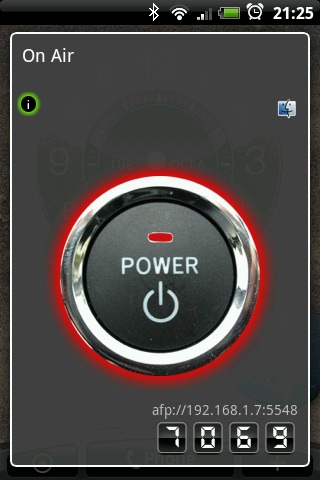
OnAir is an Android app that turns your phone into a wireless file server. You install it, start the service, and browse to the IP and port it shows you — from there you can upload, download, and manage files over WiFi.

OnAir Android app screenshot

The setup is really simple:

  1. Install OnAir from the Android Market
  2. Open the app and start the server
  3. Note the IP address and port shown on screen
  4. Open your browser on your PC and go to that address

You will see a simple web interface with your phone’s SD card contents. You can upload files from your PC to the phone, download files from the phone to your PC, or delete files you no longer need. It supports multiple file selection and works with any browser.

It is not as fast as USB for large transfers — WiFi is slower than a cable — but for quickly moving a few files across the room it is very convenient. No cables, no drivers, no hassle. Perfect for when you are on the sofa and just want to transfer a PDF or a photo.

Enjoy! :-)

Open file graphically as administrator from Nautilus – Ubuntu

Working in the terminal is fine, but sometimes you’re browsing folders in Nautilus and you just want to right-click a config file and open it as root without typing commands. There used to be a package called nautilus-gksu for this, but it was deprecated years ago and removed from modern Ubuntu releases.

Here’s how to do it now.

Option 1: nautilus-admin (recommended)

The modern replacement is nautilus-admin, a Nautilus Python extension that adds “Open as Administrator” and “Edit as Administrator” to the right-click menu:

sudo apt install nautilus-admin

After installing, restart Nautilus:

nautilus -q

Now right-click any file or folder and you’ll see “Open as Administrator” in the menu. It’ll prompt for your password via pkexec and open a Nautilus window with root privileges.

Option 2: Use the admin:// URI

If you prefer not to install anything, you can type this directly into Nautilus’s location bar:

admin:///path/to/folder

Nautilus will prompt for your password and show the specified folder with root access. It’s not integrated into the right-click menu, but it works without any extra packages.

Enjoy!

Disable directory listing/browsing – Apache

Often, you don’t want your website users to browse the whole content of a public folder. They will still be able to download files from it but not to list all of them for no reason.

This can be achieved in different ways. Here we cover modifying the Apache configuration file directly.

Open your Apache configuration file for the website you want to amend. Where it is depends on your distribution. In Ubuntu Lucid it’s in /etc/apache/sites-enabled/website_name. Open the file as administrator and look for something like:

<Directory /home/andrea/www/project_name/trunk/public/>
    Options Indexes FollowSymLinks MultiViews
    AllowOverride All
    Order allow,deny
    allow from all
</Directory>

and remove the “Indexes” option so it looks like:

<Directory /home/andrea/www/project_name/trunk/public/>
    Options FollowSymLinks MultiViews
    AllowOverride All
    Order allow,deny
    allow from all
</Directory>

Now restart Apache to apply the change:

sudo /etc/init.d/apache2 restart

If you prefer not to edit the main configuration file, you can achieve the same result by placing an .htaccess file in the directory with the single line “Options -Indexes”. This is useful on shared hosting where you don’t have access to the server configuration.

Enjoy!